How to change the date, price, and title on an event poster
Revise an approved event poster in three focused passes, keeping the font style, photograph, layout, and booking information consistent.
Illustration: generated with Codex for this tutorial. Not a Nano Banana 2.1 output or a product screenshot.
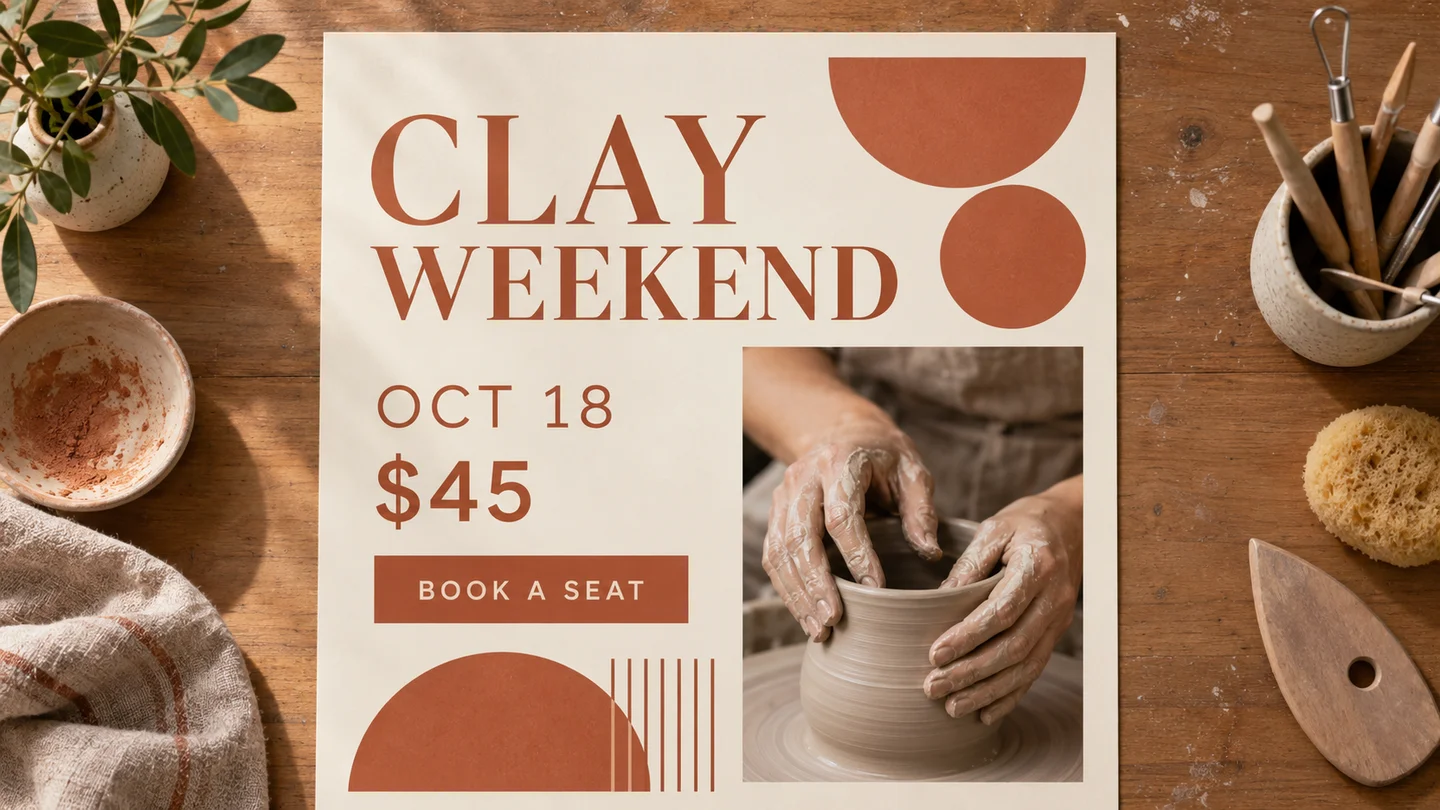
A workshop moves to another Saturday, the price changes, and the organizer shortens the title. The poster already has an approved photograph and color palette. The task is to update the information while keeping the recognizable design.
Use the fictional clay-workshop illustration as a planning example. Its visible copy is “CLAY WEEKEND,” “OCT 18,” “$45,” and “BOOK A SEAT.” The image was generated with Codex; the revised values below are proposed edits, not screenshots of completed EditTextInImage or Nano Banana edits.
Write a change sheet before opening the editor
Keep the old and new values side by side. For this example, the date becomes “OCT 25,” the price becomes “$55,” and the title becomes “CLAY STUDIO.” Everything else stays fixed. If the real event has a venue or URL, include an explicit line saying whether it changes.
| Field | Current | Requested |
|---|---|---|
| Title | CLAY WEEKEND | CLAY STUDIO |
| Date | OCT 18 | OCT 25 |
| Price | $45 | $55 |
| Action | BOOK A SEAT | Keep unchanged |
The change sheet catches a common problem: editing the price correctly while leaving an older price elsewhere in the image. Inspect the entire composition for repeated information before making the first request.
A date and price revision, side by side
The left poster says OCT 18 and $45; the right says OCT 25 and $55. CLAY WEEKEND and BOOK A SEAT stay the same. This conceptual pair shows what to compare, rather than documenting an edit made in the app.
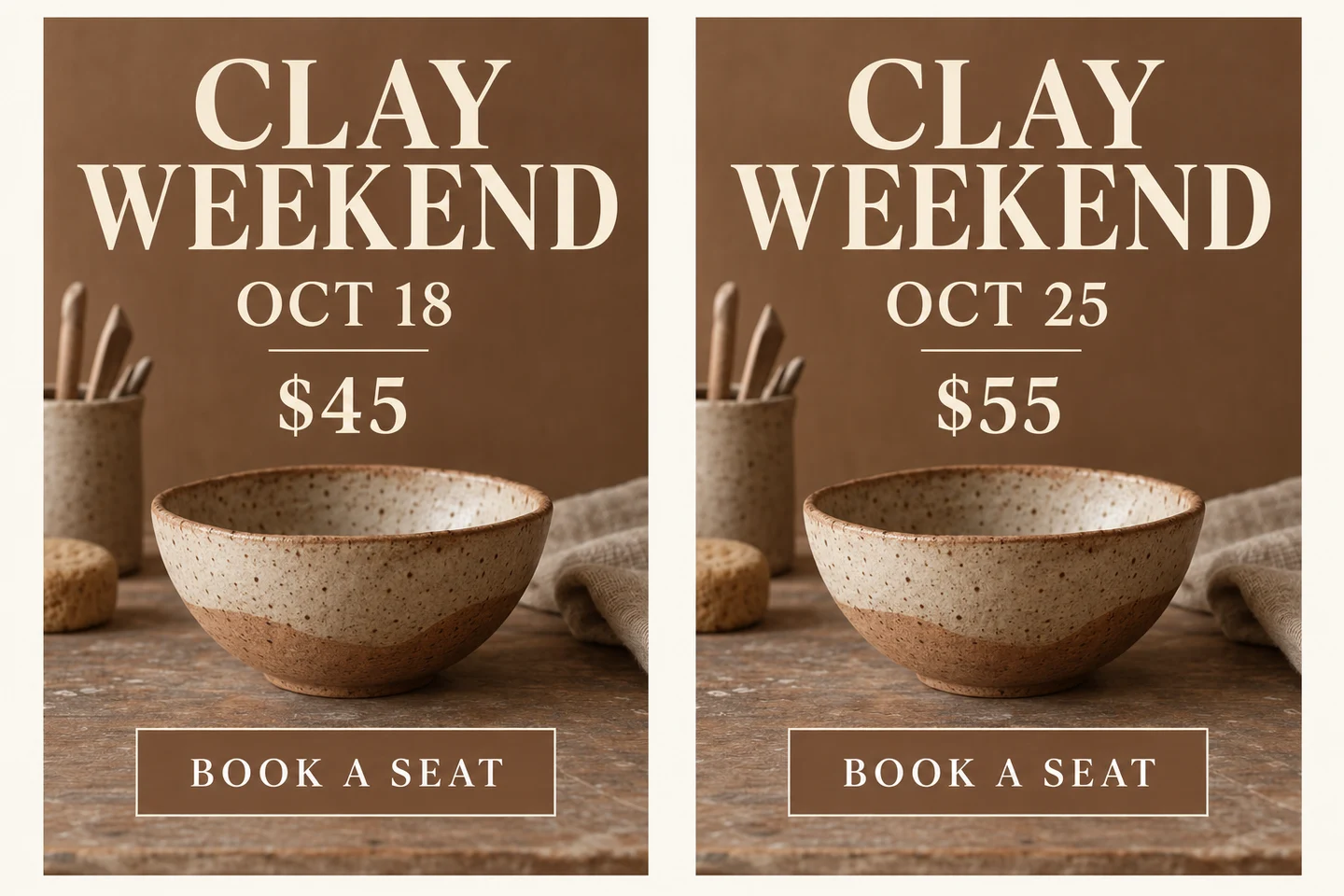
Codex-generated tutorial example; not a Nano Banana 2.1 model result or a product screenshot.
Prompt to adapt
Replace OCT 18 with OCT 25 and $45 with $55. Preserve CLAY WEEKEND, BOOK A SEAT, the ceramic bowl, the cream lettering, the background, and the spacing. Do not rewrite the whole poster.
What to inspect
Check the changed digits at full size. Compare letter height, baseline, contrast, and margins. Also inspect the bowl and nearby texture: correcting a price should not alter the photograph.
Make the date change first and inspect it before changing the price. If you also need a new title, treat that as a separate revision: a longer title may need different line breaks even when the font remains the same.
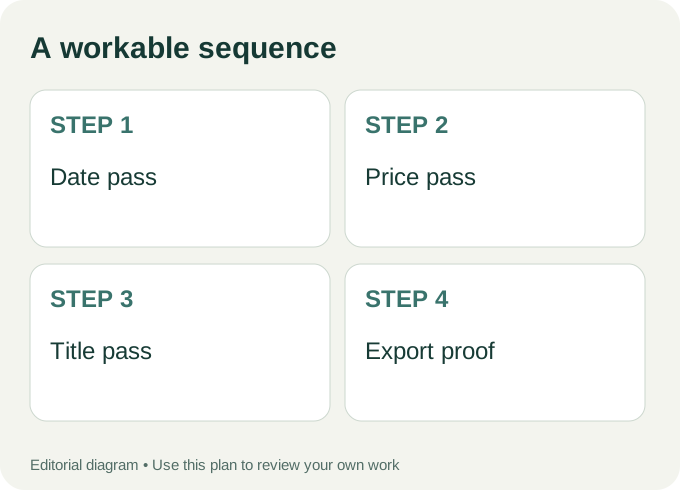
Workflow diagram: a proposed sequence, not a recorded product run.
Pass one: replace the date
Open the image in the Change Date in Image tool. Follow the controls available for your selected editing mode. Keep the instruction narrow, and preserve the title, price, image, colors, and dimensions.
Change only the date from “OCT 18” to “OCT 25”.
Match its existing type style, size, color, baseline, and position.
Preserve all other text and artwork.
Inspect the new digits and the paper texture around them. If a patch is visible, correct that result before proceeding. Keep an accepted intermediate file so the next request starts from a known version.
Pass two: update the price
Apply the price change to the accepted date revision. Preserve the currency mark and spacing. If the new number is longer than the old one, decide whether a wider text area or smaller type is acceptable before asking the editor to fit it.
For our short example, “$55” should occupy the same role as “$45.” Compare the visual weight with the date. Do not accept a version that quietly shrinks the price or adds an offer that the organizer did not approve.
Pass three: shorten the title
A title change is more likely to affect layout. “CLAY STUDIO” has a different shape from “CLAY WEEKEND.” State whether the same two-line arrangement should remain and whether the original alignment is fixed. Inspect the balance between the headline and photograph after the replacement.
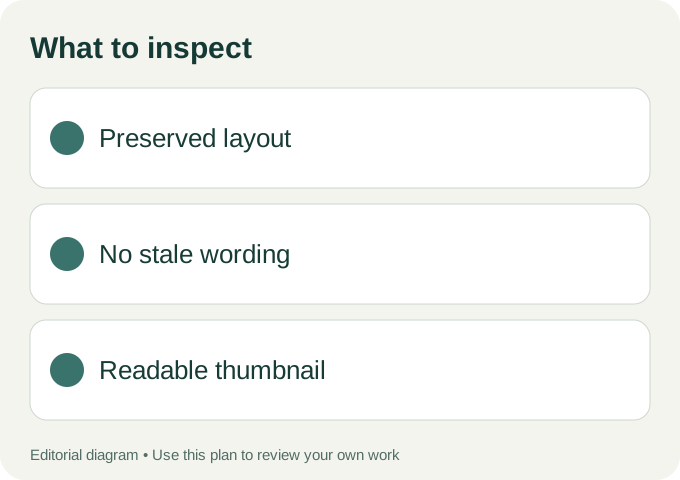
Use these checks on your own export.
For a complete poster rather than an isolated date field, see Edit Text in a Poster. If the new title no longer fits its text area, review editing text with the same font before choosing a smaller size or different line break. These tool pages handle the editing task; this article supplies the revision sequence and review checklist.
Decide when to start again
If you need a new photograph, a different aspect ratio, and a different hierarchy, a fresh composition may be less work than repeated local edits. Prepare the approved copy first, then explore the available models in Nano Banana 21. The Google release notes give context for the recent image-model update; check the selected model in the independent workspace separately.
For a final review, use the image text checklist. Compare the final file with the change sheet and the untouched original. Keep both: the original explains what was protected, and the change sheet explains why the information changed.
Author