How to fix AI-generated text in an image and preserve its style
A Nano Banana 2.1 proofreading workflow: correct wording, dates, and prices while checking font, spacing, texture, and the final crop.
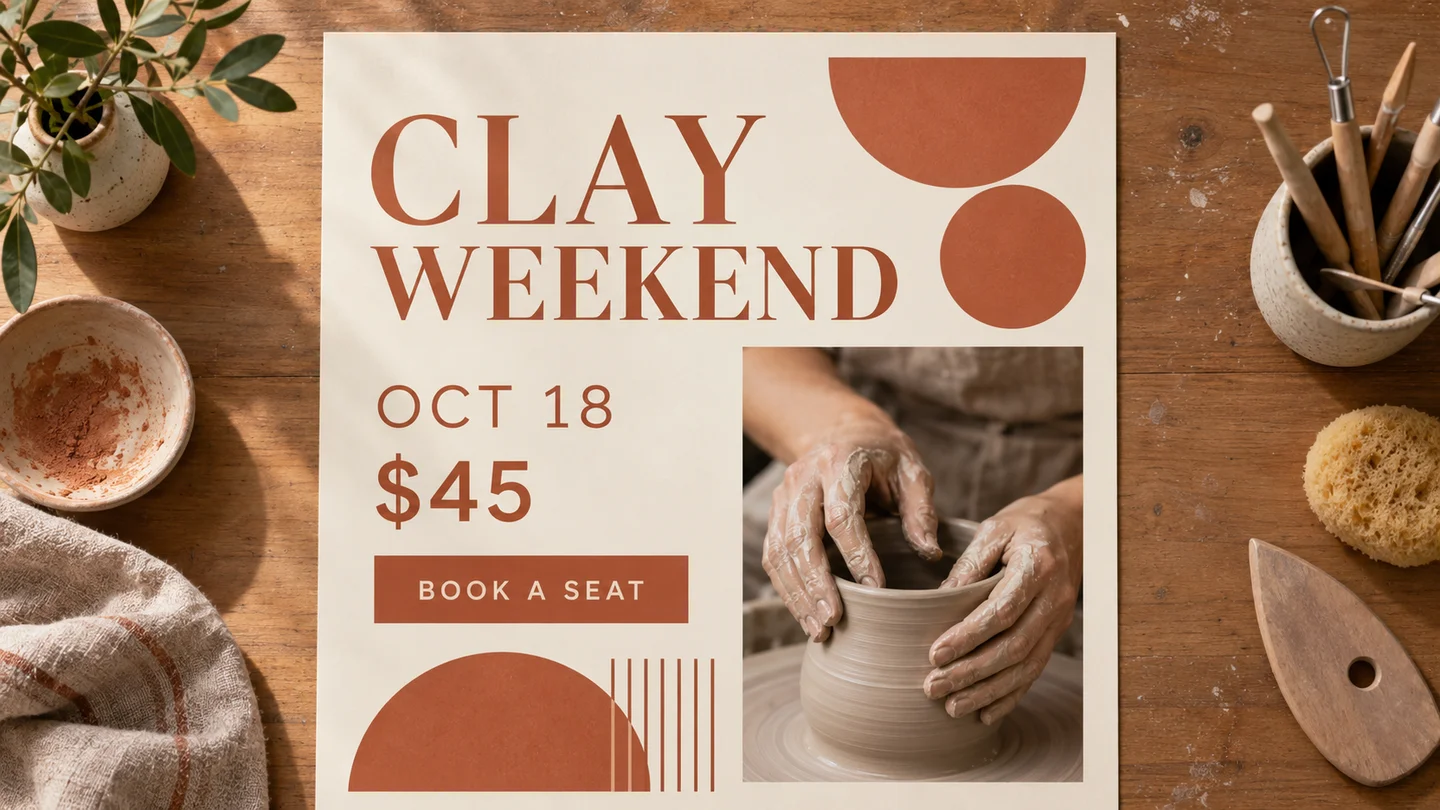
Illustration: generated with Codex for this tutorial. Not a Nano Banana 2.1 output or a product screenshot.
The expensive mistake on a poster is often small. A date can be one digit wrong. A price can lose its currency mark. A title can look correct at thumbnail size while containing a letter that does not exist.
Google’s Nano Banana 2.1 model page describes improved text rendering. That is a reason to try a typography task, not a reason to skip proofreading. For an image that includes event information or an offer, keep a separate approved copy sheet.
Start with the information someone will act on
The fictional ceramics poster in this article uses four strings: “CLAY WEEKEND,” “OCT 18,” “$45,” and “BOOK A SEAT.” The illustration was generated with Codex, and the event is invented for teaching. It is not a model comparison or a real advertisement.
On a real poster, read the date, price, address, booking link, and eligibility conditions first. These are the details a reader may use to decide where to go or what to buy. An attractive headline will not compensate for an incorrect booking instruction.
Compare the changed text with the untouched design
The left poster says OCT 18 and $45; the right says OCT 25 and $55. CLAY WEEKEND and BOOK A SEAT stay the same. This conceptual pair shows what to compare, rather than documenting an edit made in the app.
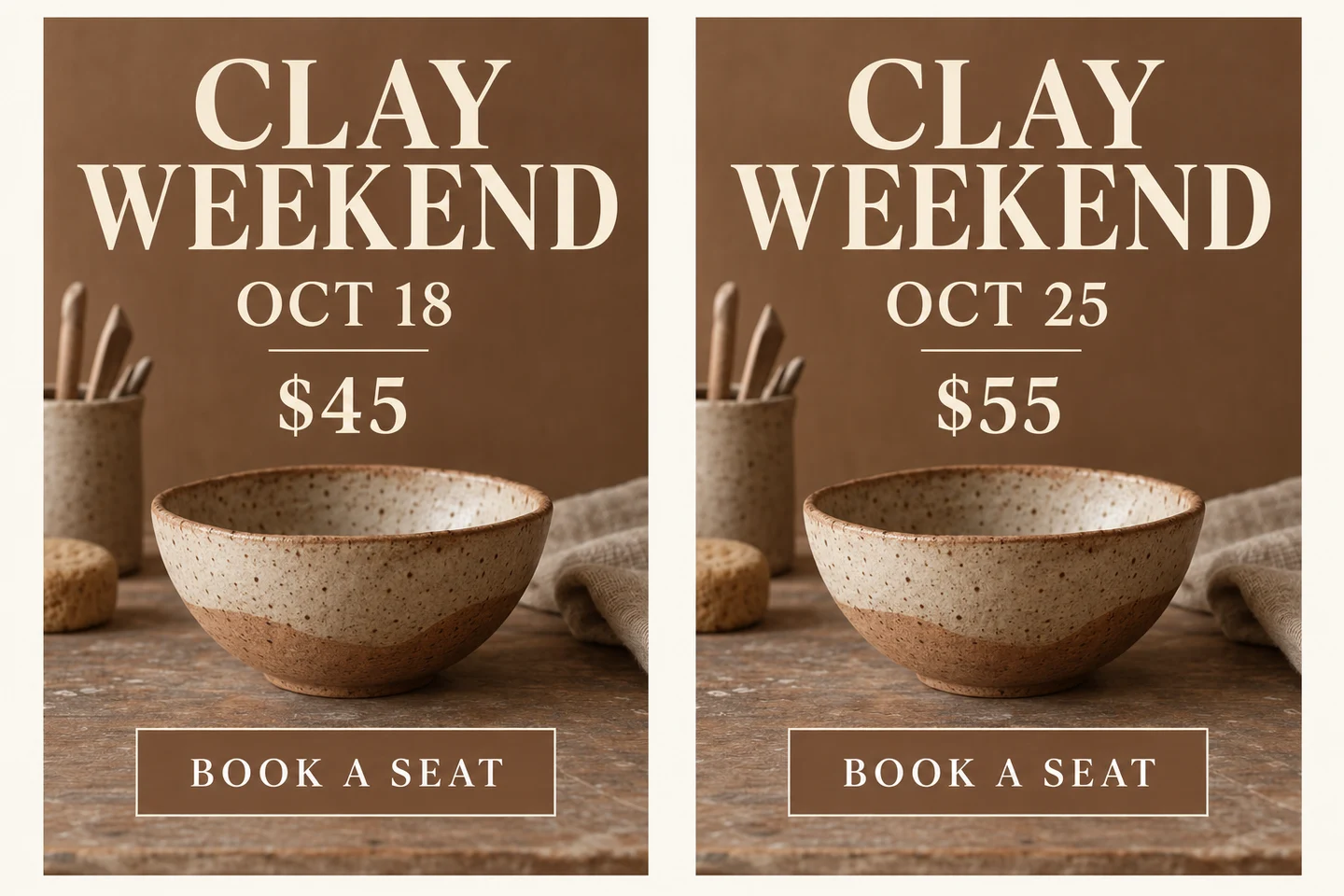
Codex-generated tutorial example; not a Nano Banana 2.1 model result or a product screenshot.
Prompt to adapt
Replace OCT 18 with OCT 25 and $45 with $55. Preserve CLAY WEEKEND, BOOK A SEAT, the ceramic bowl, the cream lettering, the background, and the spacing. Do not rewrite the whole poster.
What to inspect
Check the changed digits at full size. Compare letter height, baseline, contrast, and margins. Also inspect the bowl and nearby texture: correcting a price should not alter the photograph.
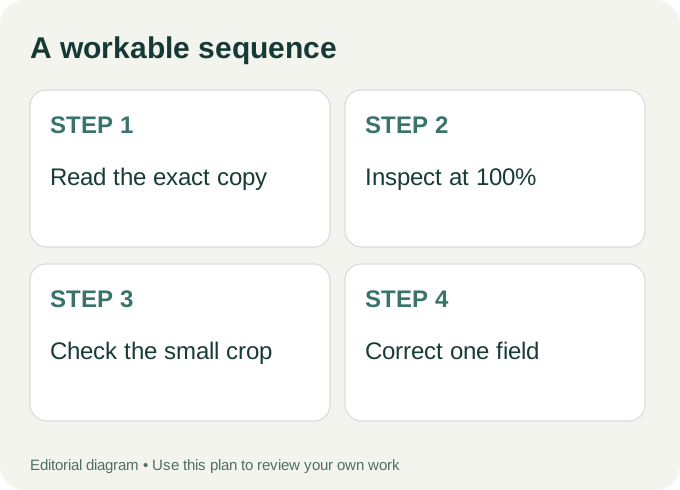
Workflow diagram: a proposed sequence, not a recorded product run.
Check letters, then layout
Inspect the full-resolution export. Compare each word against the approved copy, including punctuation and spaces. For a number, read it aloud digit by digit. Watch for a missing decimal point, a substituted zero, or a date formatted differently from the brief.
Then look at the layout. Is the title separated from the date? Does the price attach visually to the right offer? Is a line break making two words look like one? A model can reproduce the characters while still giving the information an awkward hierarchy.
If only one field is wrong, write an edit request for that field. Avoid “fix the poster,” which could change the background, headline style, and spacing along with the error.
Replace only “OCT 18” with “OCT 25”.
Keep the title, $45 price, booking line, terracotta shapes,
photo, margins, and poster dimensions unchanged.
Preserve the font’s visible character
A replacement can contain the right word and still look pasted on. Compare the letter weight, baseline, spacing, and color with nearby text. On textured paper, inspect the area around the changed word for a smooth patch or a rectangular edge. Ask to preserve the visible style rather than claiming that the editor has identified an exact font family.
For a focused correction, start with Fix Text in an AI-Generated Image. If your main concern is consistency with the existing lettering, use the same-font editing guide. Check the exported image again after the change; matching style is something to verify, not a guaranteed property of every result.
Test the size readers will actually see
A desktop preview is forgiving. Check a phone-sized rendering and the crop used by the destination. Thin lettering over a textured photograph can be readable at full size and disappear in a feed. Small gray text on cream paper may need more contrast.
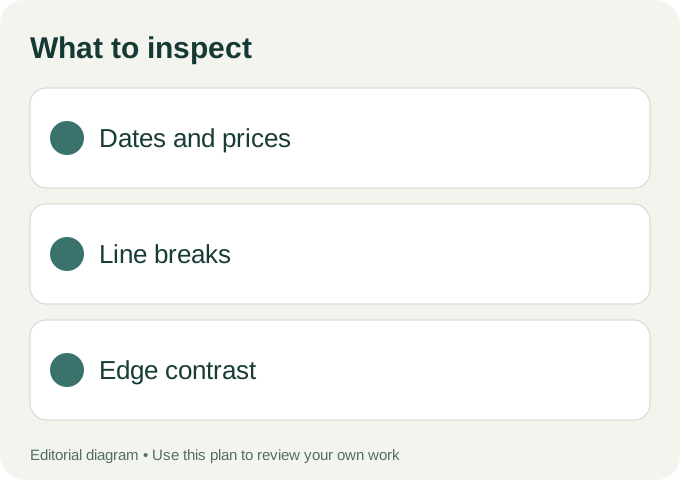
Use these checks on your own export.
Treat URLs and QR codes as functional elements, not decoration. Type the link into a browser; scan the exported QR code with another device if you use one. Do not accept an image simply because the code looks convincing.
Choose a focused correction or a fresh composition
For a localized change, use EditTextInImage’s workspace and inspect the actual result, especially the texture and spacing around the replacement. A wider rewrite may justify starting from the original composition again. If the whole image needs a different scene, Nano Banana 21’s image workspace offers a separate place to inspect available generation models.
The poster revision tutorial walks through three specific changes. Save an untouched original before editing and compare the final export against the copy sheet one more time. The final check belongs to the person publishing the poster, even when the lettering looks unusually clean.
Author