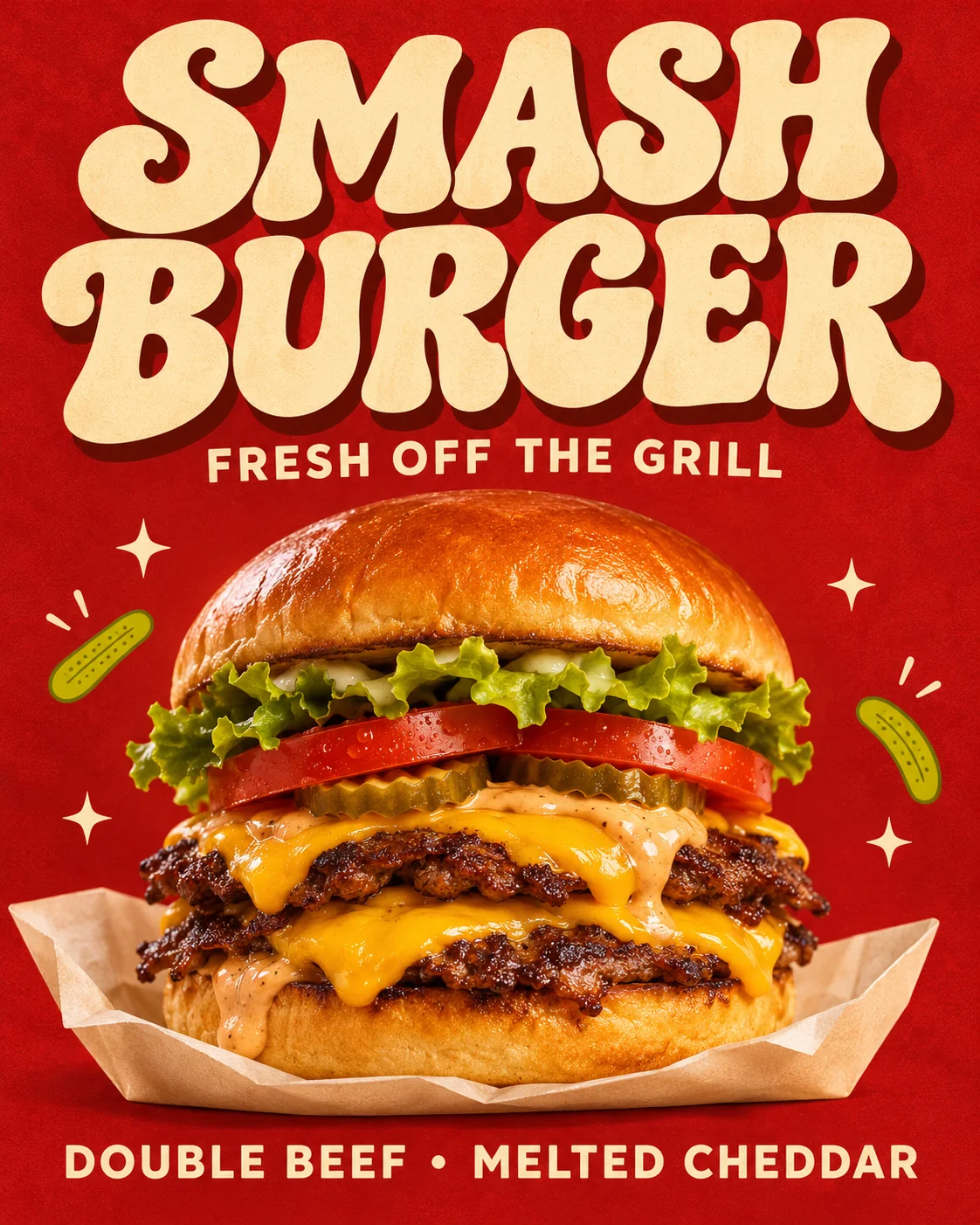
Grab Text is one of Canva's most useful Magic Studio features: it lifts the words out of a photo so you can retype them. It also surprises people. The new text often comes back in a different font, and a textured background behind it can look smoothed over. This guide covers where to find Grab Text, why it may not appear, why the font changes, and what to do when you need the original lettering.
What Grab Text is and where to find it
Grab Text detects the text in a photo, turns it into an editable Canva text box, and fills in the area behind the original words.
To find it on desktop:
- Select the photo in your design.
- Click Edit photo in the toolbar.
- Under Magic Studio, choose Grab Text.
On mobile, select the photo and open its image tools. Canva rearranges menus from time to time, so if the label has moved, search its help centre for Grab Text.
4 reasons Grab Text isn't showing
- Your plan doesn't include it. Grab Text is a Canva Pro feature. On a free account it may be missing or locked.
- You selected something that isn't a photo. Graphics, SVG elements, text and videos do not offer Grab Text. Imported PDF pages may also behave differently from a regular image.
- The photo is grouped or inside a frame. Ungroup it, or click again to select the image inside the frame rather than the frame itself.
- You are in a Canva Doc. Grab Text is not available in Canva Docs. Open a regular design instead.
Why the font changes and textured backgrounds smear
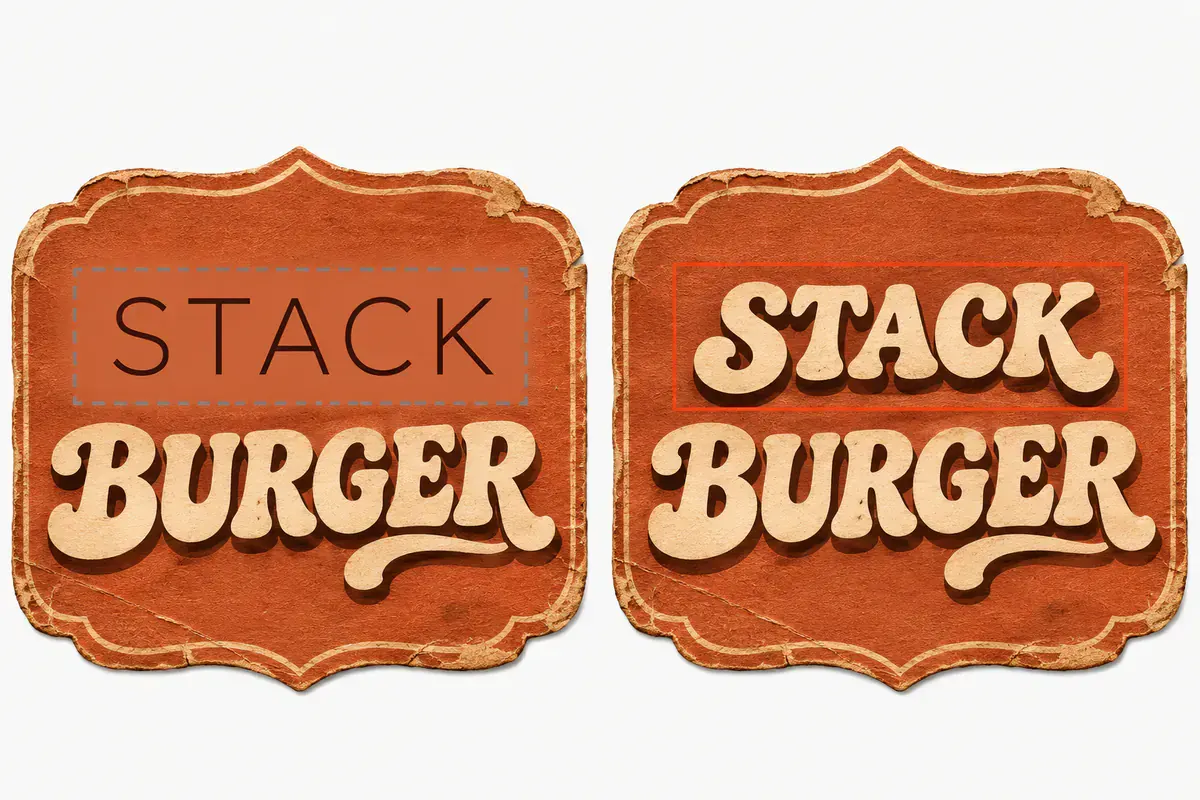
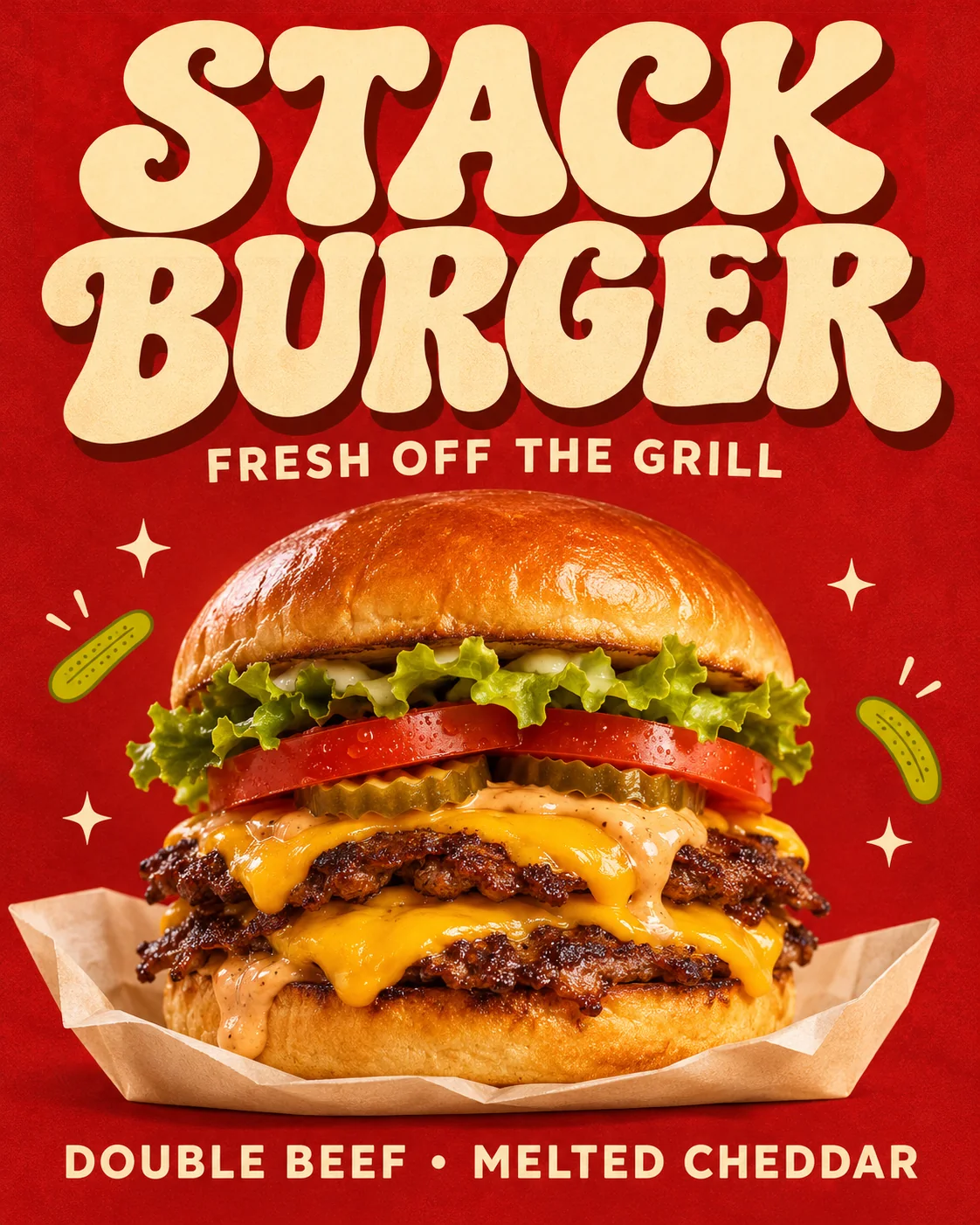
Grab Text (typical)
Custom display lettering becomes an available library font and the cleared patch behind it can look smoother than the paper grain.
Selected-box replacement
The new word stays part of the image inside the red box, keeping the original curve, shadow and surrounding paper texture.
The result of Grab Text is a regular Canva text box. A text box needs a font from Canva's library, so:
- Custom and hand-drawn lettering usually has no exact match. The text is set in a similar available font, and details like a retro curve, an inline or a drop shadow can be lost.
- The original words are removed from the photo and the space is filled in. On flat colour that is invisible. On paper grain, fabric or photographic texture, the fill can look softer than its surroundings.
That trade-off is fine when you want an editable layout. It is a problem when the lettering is the design.
A free alternative that redraws the letters in place
A selected-box editor does the opposite: the words stay part of the image, and new letters are drawn inside the box in the existing style.
- Open the Canva alternative for text editing and upload a PNG, JPEG or WebP up to 10 MB. You can download your design from Canva first.
- Select the words with Word, Whole line or Draw an area. Recognition runs on your device and uses no credits.
- Type the replacement and check the cost shown before you generate. One standard 1K edit costs 6 credits, which the free daily allowance covers after a quick browser verification.
- Compare at 200% and download without a watermark.
A real example: CEDAR & SAGE → MAPLE & MINT
This painted wooden restaurant sign uses custom flared serif lettering on weathered wood grain under directional light — the exact combination that causes font substitution and blurry background fills when lifted into a stock text box.
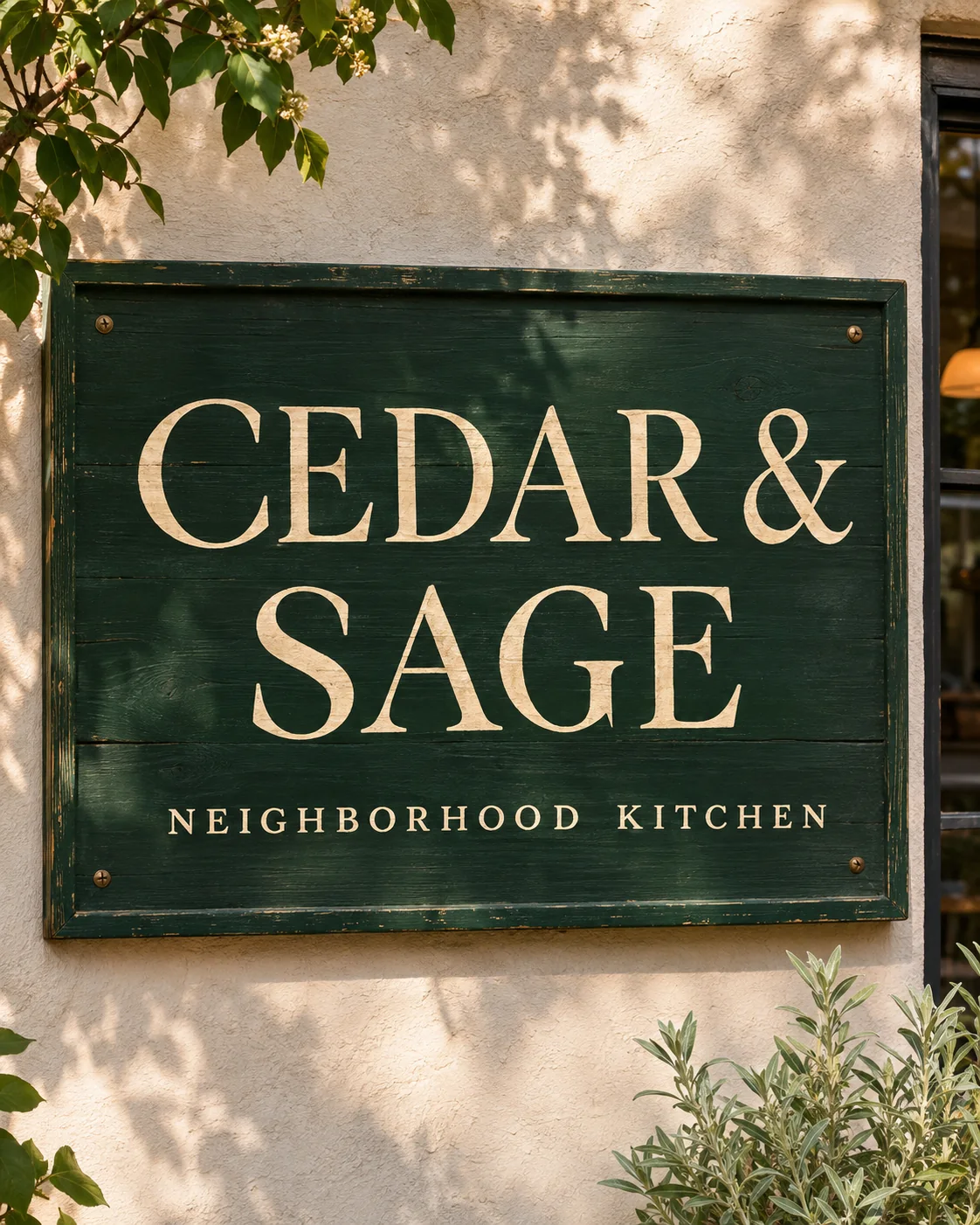 Before
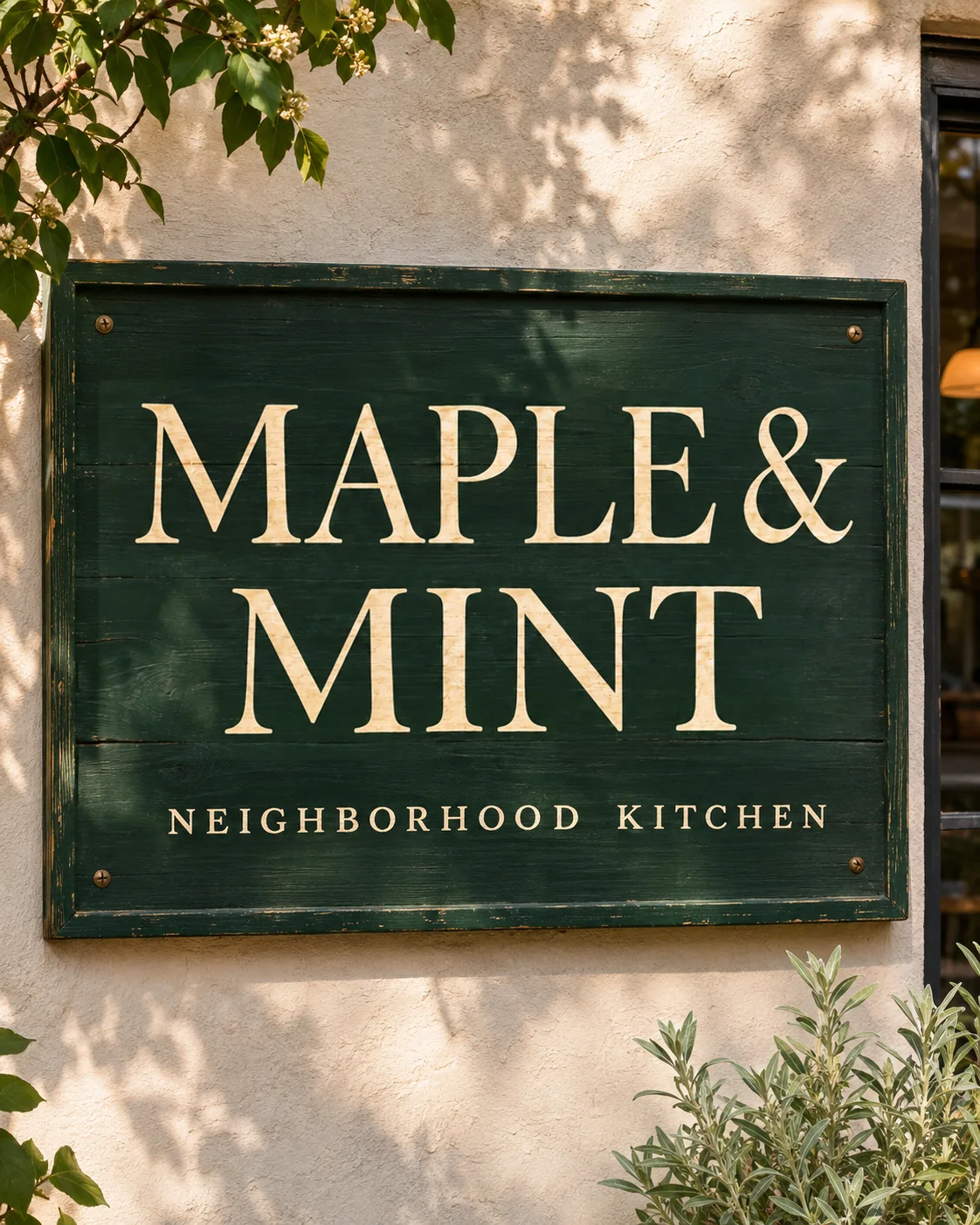 After
For more examples of matching existing lettering, see editing text with the same font.
When Canva is still the right tool
If you own the Canva design and the text is still a text element, edit it directly: that is faster and fully editable. Grab Text is a good choice when the background is flat and you want to restyle the words anyway. A selected-box edit fits when the picture is final and the lettering has to stay as it is.
Canva describes its own feature here: Canva image text editing and Grab Text. Check current availability and plan conditions with Canva.
Frequently asked questions
What is Grab Text in Canva?
Grab Text is a Magic Studio feature that detects text in a photo, turns it into an editable Canva text box and fills in the background behind the original words.
Where is Grab Text in Canva?
Select the photo, click Edit photo in the toolbar, and look under Magic Studio for Grab Text. On mobile, it is under the image tools for the selected photo. Canva updates its menus, so check its help centre if the label has moved.
Why isn't Grab Text showing in Canva?
The usual reasons are: your plan does not include it (it is a Canva Pro feature), the selected element is a graphic, text or video rather than a photo, the photo is grouped or you selected its frame, or you are in a Canva Doc, where Grab Text is not available.
Why does Grab Text change my font?
Grab Text creates a normal Canva text box. If it cannot identify the original lettering, the text is set in a similar font available in Canva, so custom or hand-drawn display type can look different. The filled background can also smooth out texture.
Is there a free alternative to Canva Grab Text?
Yes. EditTextInImage redraws the new words inside a selected box in the existing style instead of creating a text box. Text recognition runs on your device and costs nothing, and the free daily allowance of 6 credits covers one standard 1K edit after a quick browser verification. No Pro plan is needed.