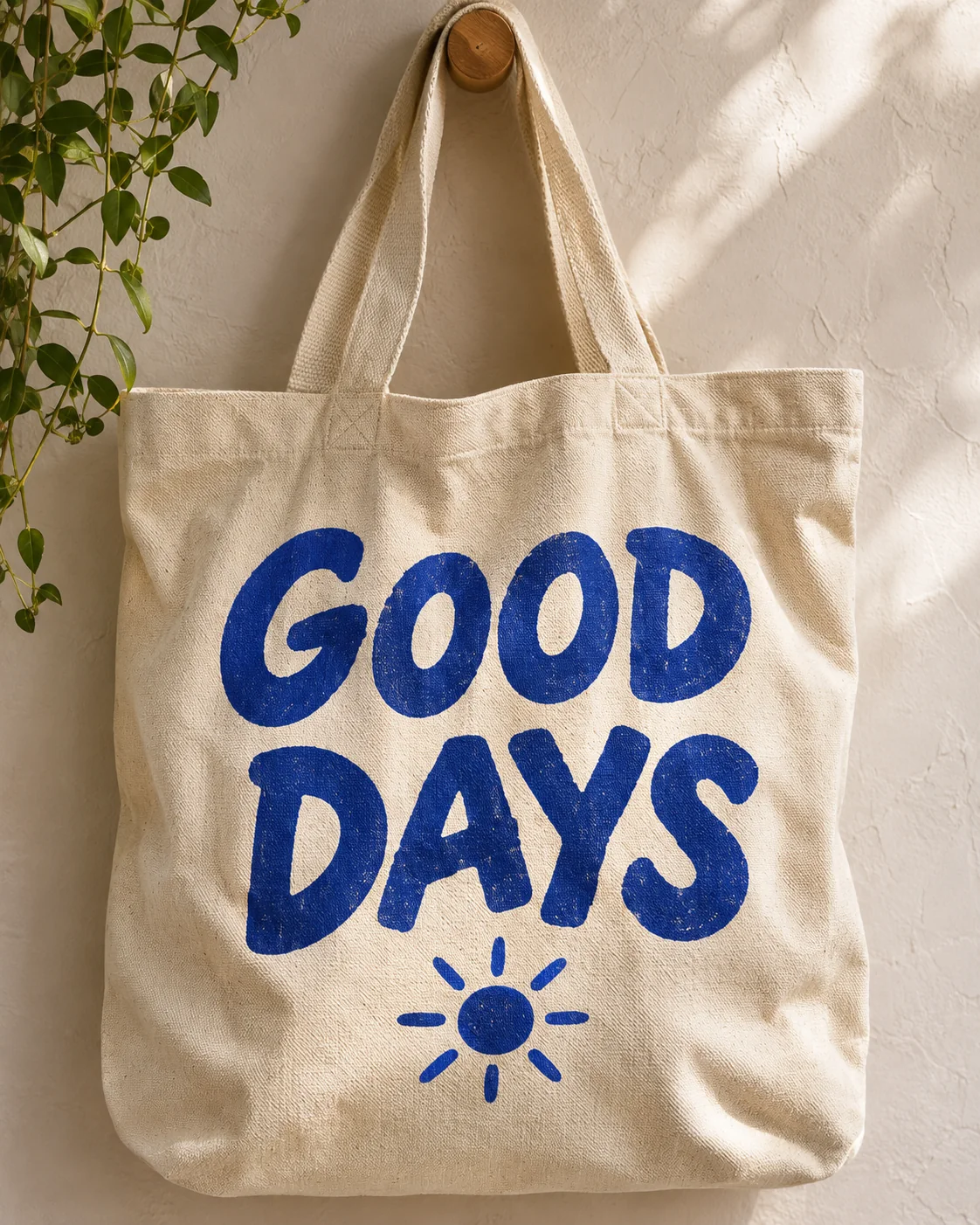
Replacing a word in a JPEG or PNG sounds small. The trouble is that many online AI editors regenerate the whole picture to change one line, and you only notice the cost later: softer edges on a logo, smudged fabric texture, a slightly different sky. This guide explains where that quality loss comes from and how to change only the words you selected.
Why full-image AI edits blur JPEG blocks and PNG edges
A JPEG stores your picture in 8 × 8 pixel blocks. Every time the whole file is decoded, changed and saved as JPEG again, each block is re-encoded and a little detail is lost. It is most visible around sharp lettering, fine patterns and flat colour.
A PNG keeps exact pixels, which is why screenshots, logos and graphics with hard edges look crisp. When an AI model regenerates the entire image, it redraws those edges too. Even if the new picture looks right at first glance, thin lines can soften and small text elsewhere can drift.
So the question is not only which tool you use. It is how much of the image the tool rewrites.
What a selected-box patch leaves untouched
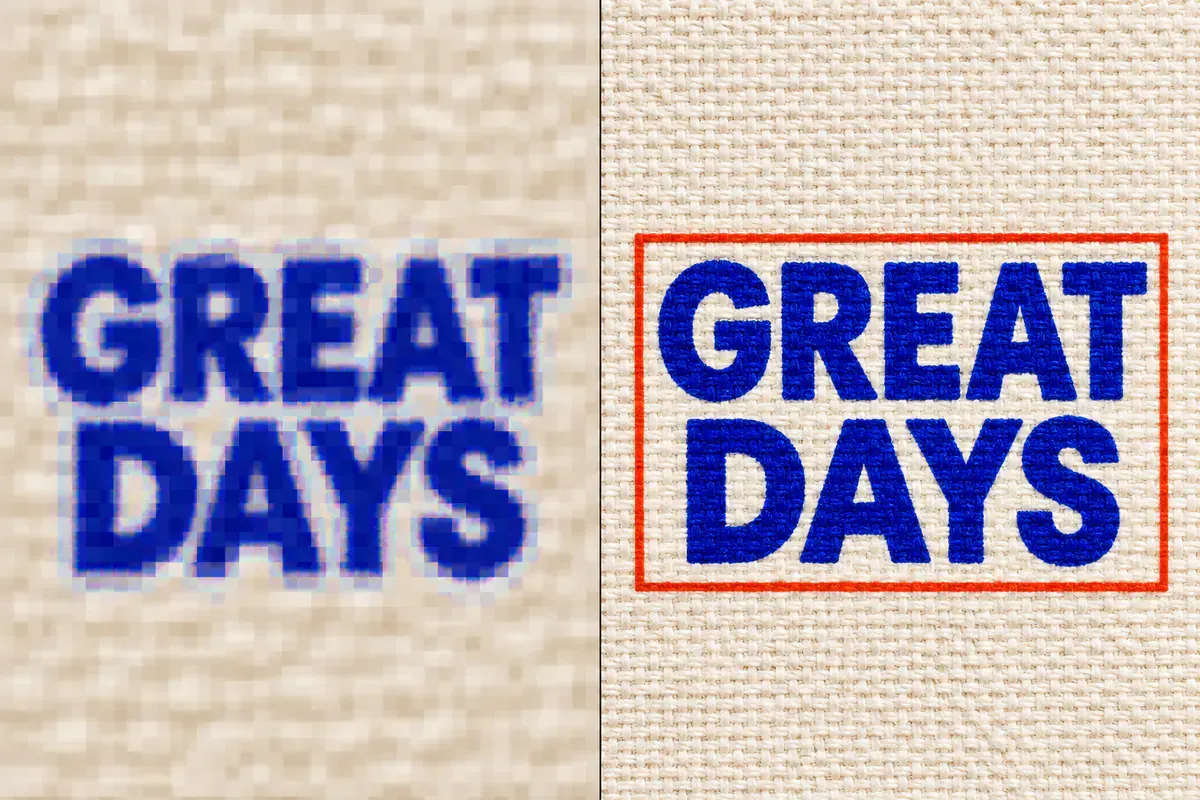
Full-image AI edit
Every 8 × 8 JPEG block is re-encoded and sharp PNG lettering or fine textures soften across the whole picture.
Selected-box patch
Only pixels inside the red box change (with ≤ 2 px inward feathering); every pixel outside stays lossless.
EditTextInImage works on the rectangle you approve. The generated patch is placed into a normalized copy of your original image, the edge of the patch is feathered inward by at most 2 pixels, and pixels outside the approved rectangle are retained in a lossless result. The canvas dimensions stay the same as your source.
In practice, that means the parts of the image you did not select are not redrawn, and there is no second round of JPEG compression on top of them.
Edit a JPEG or PNG step by step
- Open the photo text editor and upload a PNG, JPEG or WebP image up to 10 MB.
- Choose the text. Use Word for a single word, Whole line for a full line, or Draw an area when recognition misses stylised lettering. Recognition runs on your device and uses no credits.
- Type the exact replacement. Keep it close to the original length when the space is tight.
- Check the cost shown before you submit, then generate. One standard 1K edit costs 6 credits; a 2K edit costs 10.
- Zoom to 200% and inspect the box edges, letter spacing and texture around the new words.
- Download the result. There is no watermark.
Real JPEG and PNG examples: 20% OFF → 30% OFF and MAY 24 → MAY 31
Photographed cards and graphic posters expose quality loss right away: re-generating the whole frame softens paper grain, product edges and hairline rules. In these two pairs downloaded from EditTextInImage, only the selected numbers changed while the rest of each frame stayed intact.
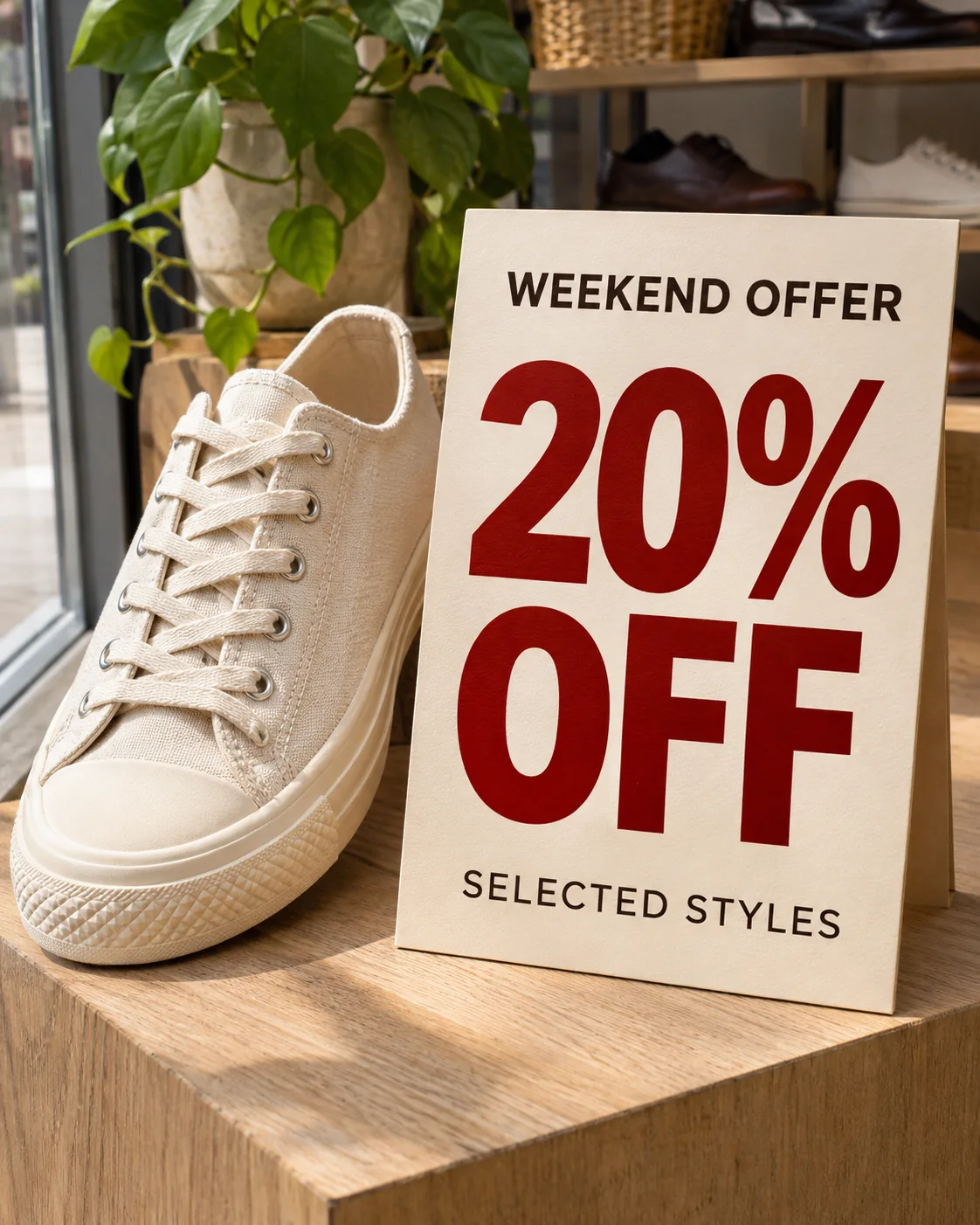 Before
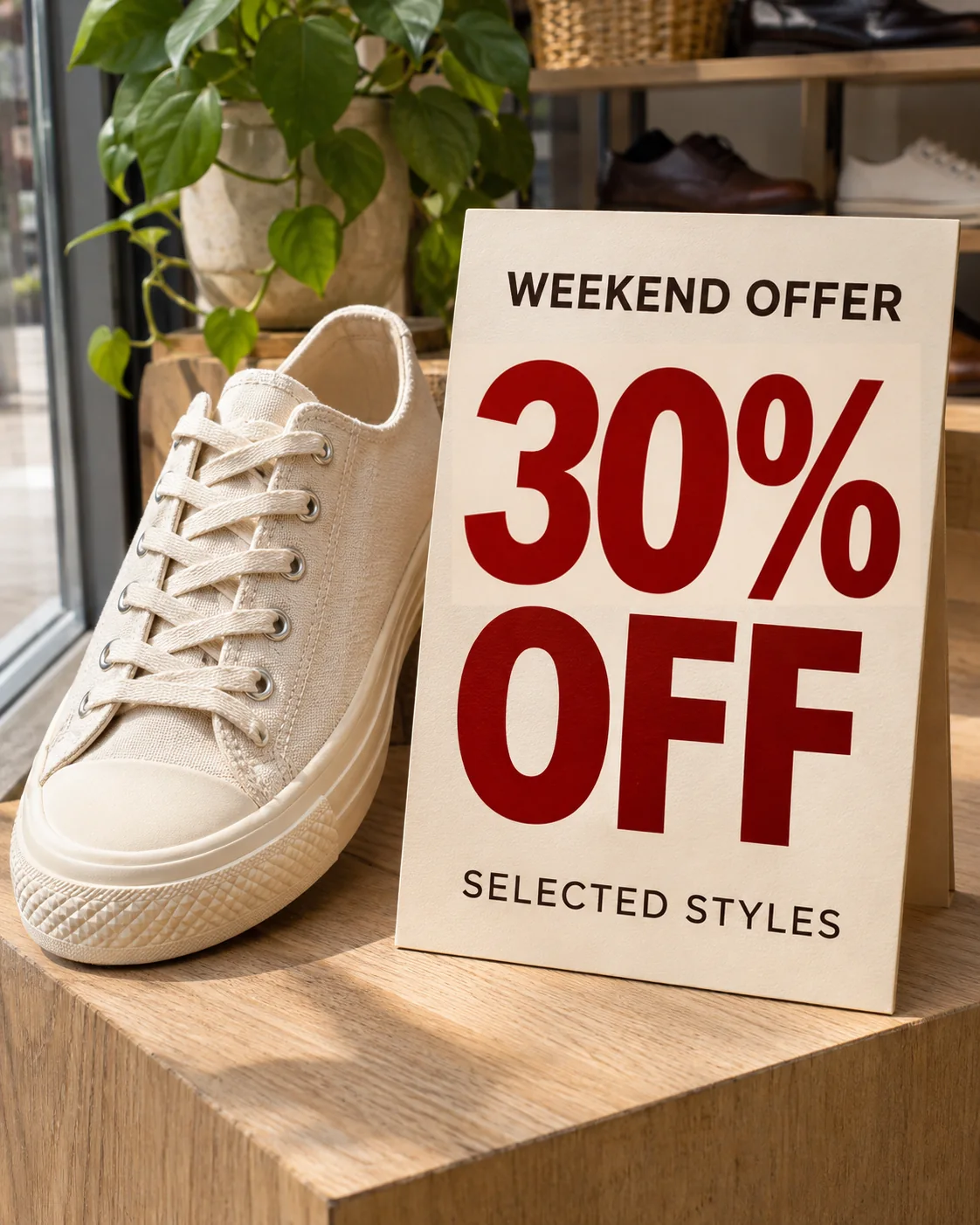 After
Graphic layouts with clean margins behave the same way. Changing MAY 24 to MAY 31 on this exhibition poster leaves the title, opening hours, address and sculpture sharp.
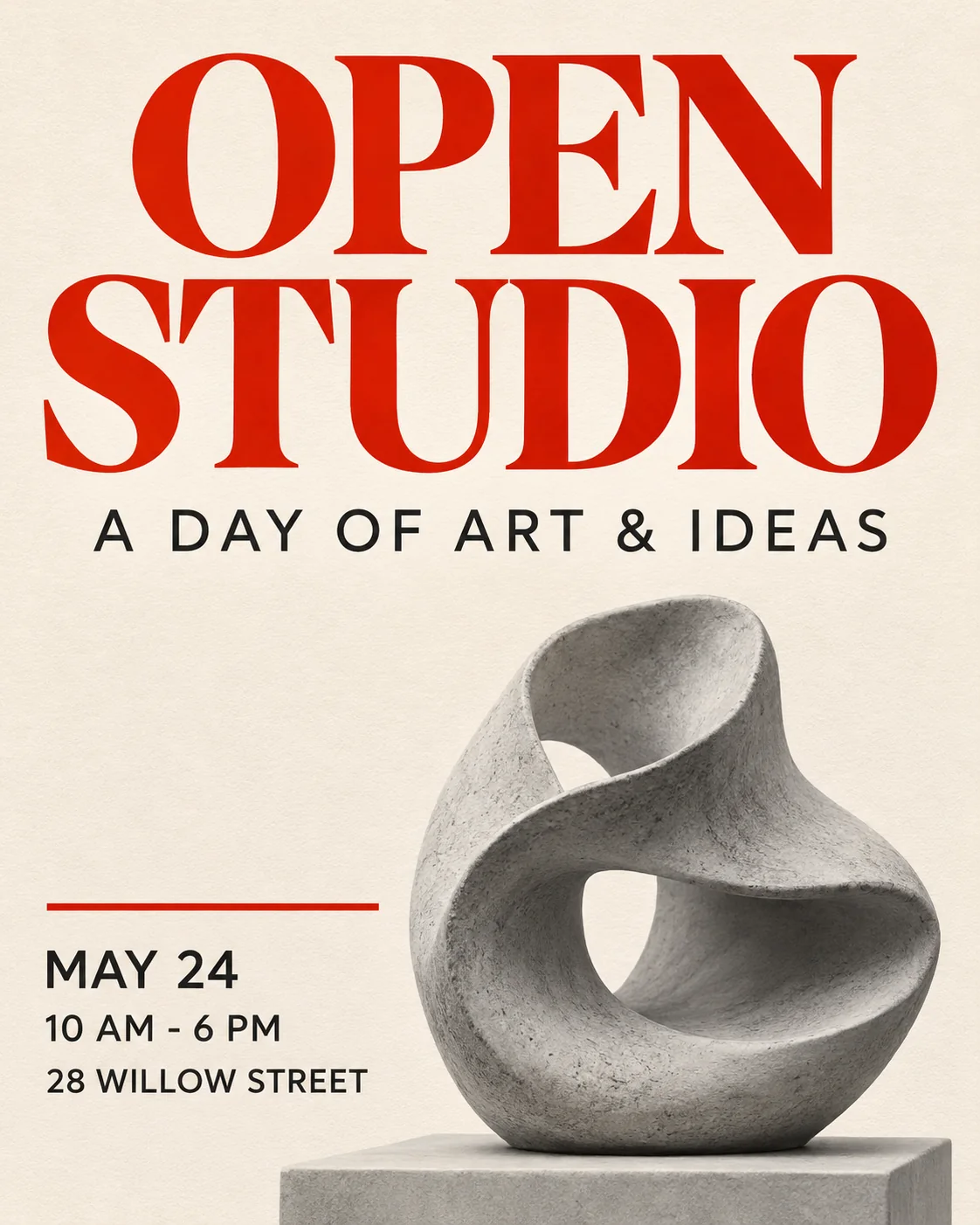 Before
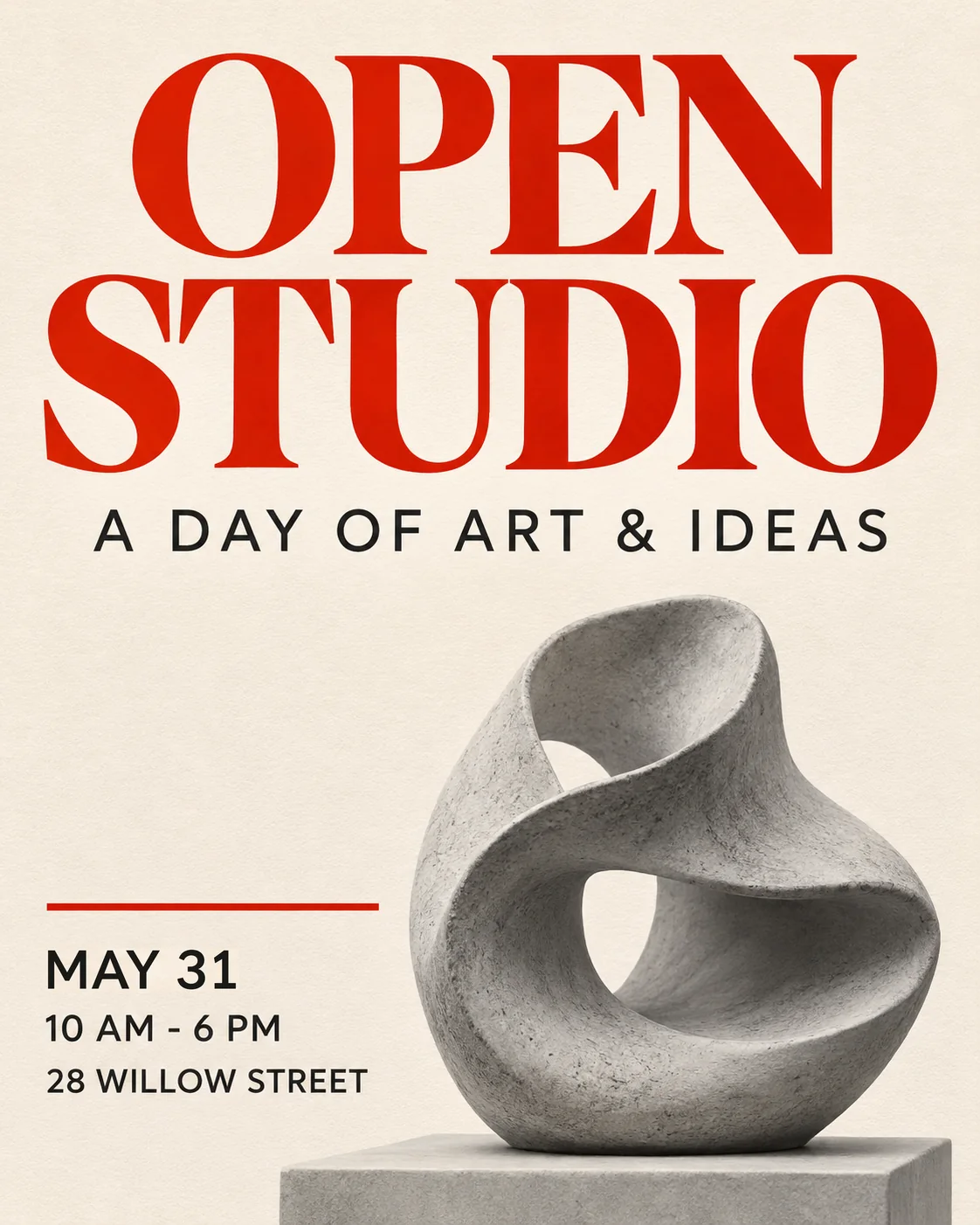 After
How to check quality before you download
Look at three things at 200% zoom:
- The box edge. A visible rectangle usually means the selection was much larger than the text. Redraw a closer box.
- The letters. Compare stroke weight, spacing and baseline with nearby text that did not change.
- Repeated text. If the same price or name appears twice, edit each occurrence and inspect both.
If an edit does not look right, adjust the selection or the replacement and try again rather than accepting a near miss.
Changing the font of text in a PNG
Most people searching for this want the same font with different words. That is what a selected-box edit is designed for: the new letters follow the existing style. For more on matching lettering, see editing text with the same font.
If you actually want a new typeface, you are redesigning the text rather than correcting it. Rebuild that part in a layout or design app where you control the font file.
When another approach is better
Use the original design file if you have it: a layered PSD, Figma or Canva file will always give you full control. Very small text, heavily compressed screenshots and words that wrap around curved objects may need a closer selection or several focused passes. And only edit images you have the right to change; never alter documents or records to mislead someone.
For a quick walkthrough of every control, read how to edit text in an image, or change text in an image for general replacements.
Frequently asked questions
How can I edit text in a JPEG image online for free?
Upload the JPEG to a text editor that works on a selected area, choose the words with Word, Whole line or Draw an area, type the replacement and generate. On EditTextInImage, text recognition runs on your device and costs nothing; one standard 1K edit costs 6 credits, which the free daily allowance covers after a quick browser verification.
Will the downloaded image have a watermark?
No. Downloads have no watermark, including eligible edits made with free daily credits.
Does editing one word re-compress my whole JPEG?
Not with a selected-box edit. The generated patch is placed into a normalized copy of your original, pixels outside the approved rectangle are retained in a lossless result, and the canvas dimensions stay the same. Full-image AI edits are different: they regenerate and re-encode everything.
Which files and sizes can I upload?
PNG, JPEG or WebP images up to 10 MB. Larger files need to be resized or exported at a lower size before upload.
Can I change the font of the text in a PNG, not just the words?
The editor is built to match the lettering that is already there. If you need a different typeface, treat it as a redesign: rebuild the text in a layout app, or replace the words first and then adjust the style there.