You select the Type tool, click on the words you want to change, and Photoshop creates a brand-new, empty text layer instead. That behaviour is a clue. It means Photoshop does not see editable text where you clicked. There are three possible reasons, and each one has a different fix.
The Type tool makes a new empty layer: diagnose it in 10 seconds
Open the Layers panel and look at the layer that contains the words.
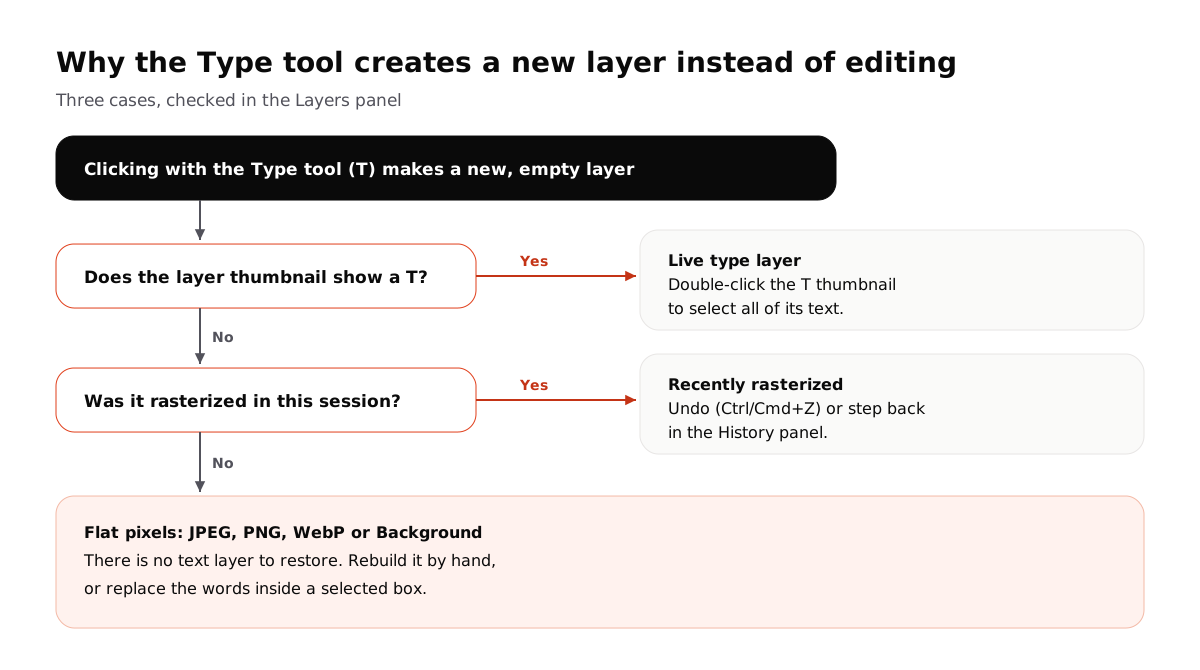
Case 1: a live type layer
If the layer thumbnail shows a T, the text is still editable. You probably clicked slightly off the letters, or a different layer was selected.
- Double-click the T thumbnail to select all of the layer's text.
- Or click directly on a letter with the Type tool while that layer is selected.
If Photoshop warns about a missing font, it will substitute one when you edit. Install the original font first if you need an exact match.
Case 2: rasterized in this session
If the thumbnail looks like an image and you rasterized the text recently, step back:
- Press Ctrl + Z (Windows) or Cmd + Z (Mac), repeatedly if needed.
- Or open Window > History and click a state before Rasterize Type.
There is no un-rasterize command
Rasterizing turns letters into pixels and discards the font, size and characters. Once the document is closed or the history is gone, Photoshop cannot recover the live text layer.
Case 3: a flat JPEG, PNG or WebP
If you opened a JPEG, PNG or WebP, the whole picture is a single Background layer. There never was a text layer. This is the most common case when you receive an image from someone else.
Rebuilding the text by hand: the 6 steps
This is the standard manual method. It gives full control but takes time, especially on textured backgrounds.
- Duplicate the Background layer (Ctrl/Cmd + J) so the original stays intact. While the old words are still visible, sample their colour with the Eyedropper and run Type > Match Font around them to find the closest installed or Adobe font.
- On the duplicate layer, draw a close selection around the old words with the Rectangular Marquee or Lasso tool and use Edit > Content-Aware Fill (or the Remove tool) to fill the area from its surroundings.
- Select the Type tool, apply the matched font and sampled colour, and type the new words.
- Toggle the original layer on and off to match font size, tracking and alignment.
- Adjust angle or perspective with Edit > Free Transform or Warp if the surface is tilted.
- Add a little noise or texture so the new text blends, then compare at 100% and 200%.
When the PSD or font file is missing
Without the layered file or the font, matching angled 3D lettering and blending cast shadows by hand is slow guesswork. A selected-box editor takes a different approach: you mark the old words, type the replacement, and new letters are drawn in the same style inside that box while pixels outside it stay untouched.
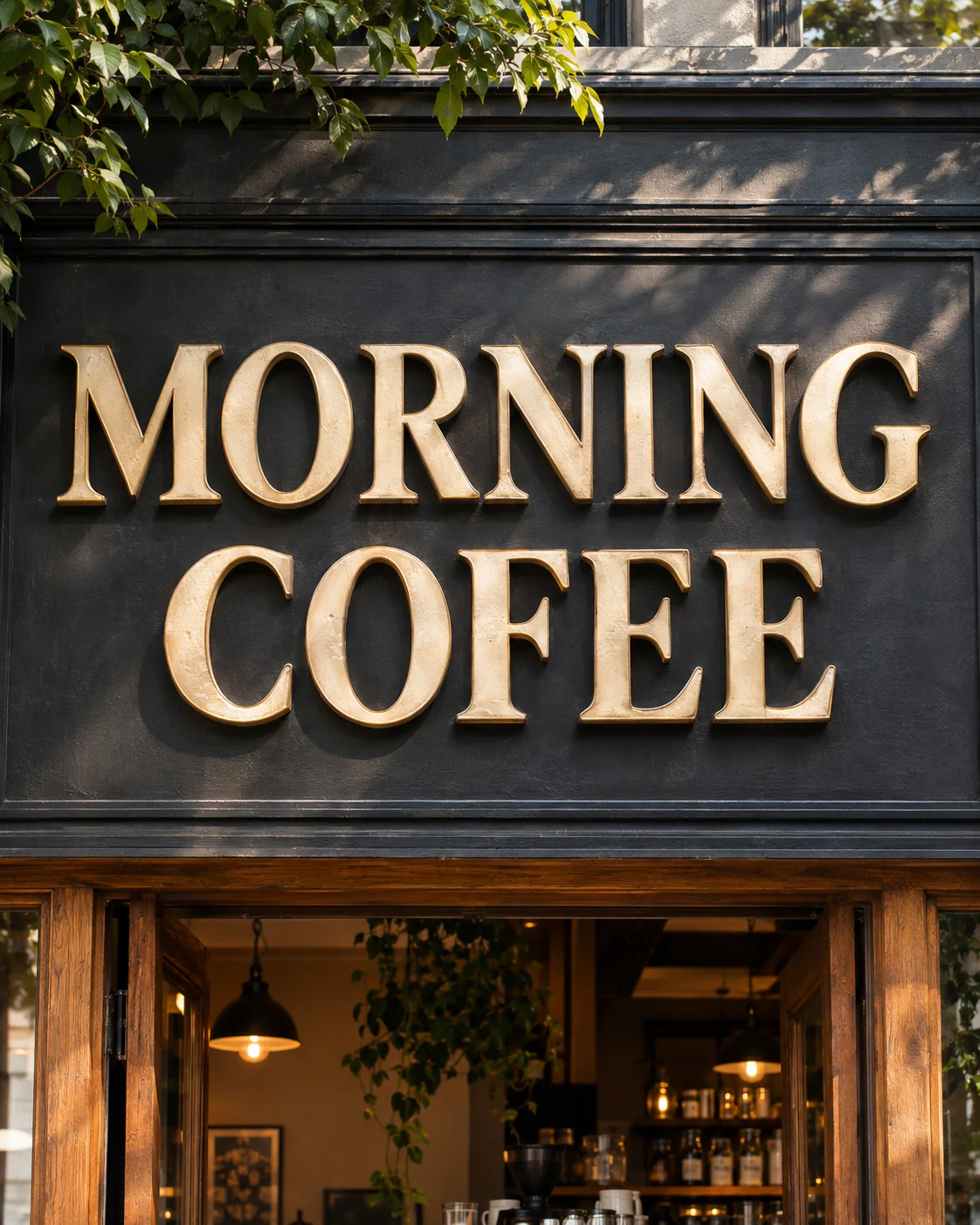 Before
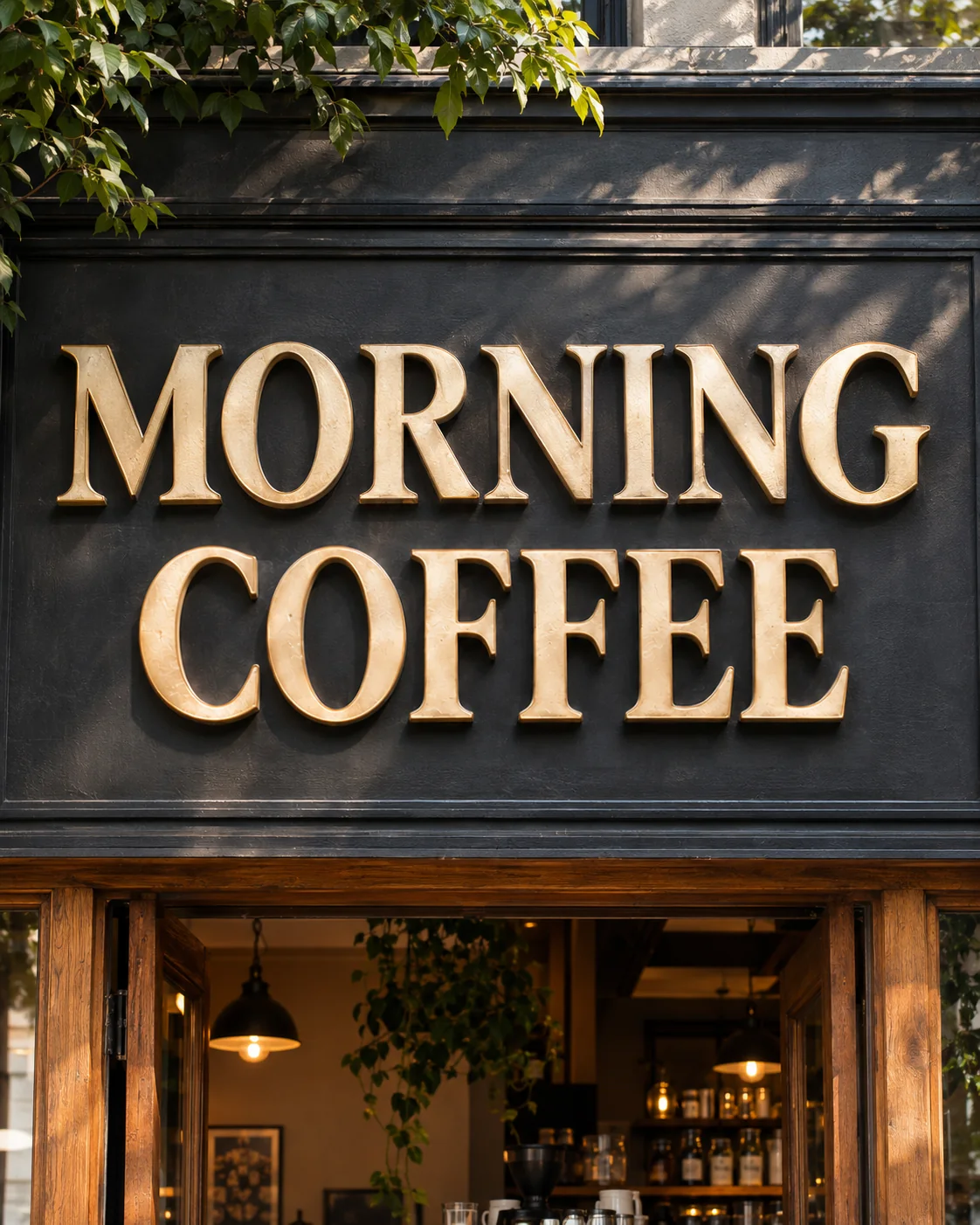 After
For a side-by-side look at both workflows, see EditTextInImage vs Photoshop. If matching the lettering is the hard part, read editing text with the same font.
Editing text without a new layer or changing the background
If you need to change text without creating a new layer, it has to be a live type layer (case 1). For flat images, a new layer is the normal Photoshop result, and keeping the background intact depends on a clean fill in step 2.
The official Adobe guide covers live text in detail: Edit text on a type layer. Check current feature names in your Photoshop version, as menus change between releases.
Frequently asked questions
Why can't I click to edit text in Photoshop?
The Type tool can only edit live type layers. If the words are on a rasterized layer or part of a flat JPEG, PNG or WebP, clicking starts a new text layer instead.
How do I make text editable in Photoshop again?
If the layer was rasterized in the current session, undo with Ctrl/Cmd+Z or step back in the History panel. Otherwise there is no text information left; you have to rebuild the words or replace them in the image.
Can I un-rasterize a layer?
No. Rasterizing turns the text into pixels and discards the font, size and characters. Only undo or History can bring the live layer back, and only while that history is still available.
How do I edit text in Photoshop without creating a new layer?
On a live type layer, double-click the T thumbnail in the Layers panel to select all of its text, or click directly on the existing words with the Type tool. On a flat image, any new text will be on a new layer by design.
How do I edit text in Photoshop without changing the background?
Select only the old words, remove them with Content-Aware Fill or the Remove tool, then type and match the new text. Or replace the words inside a selected box in a browser editor, which keeps pixels outside the box.