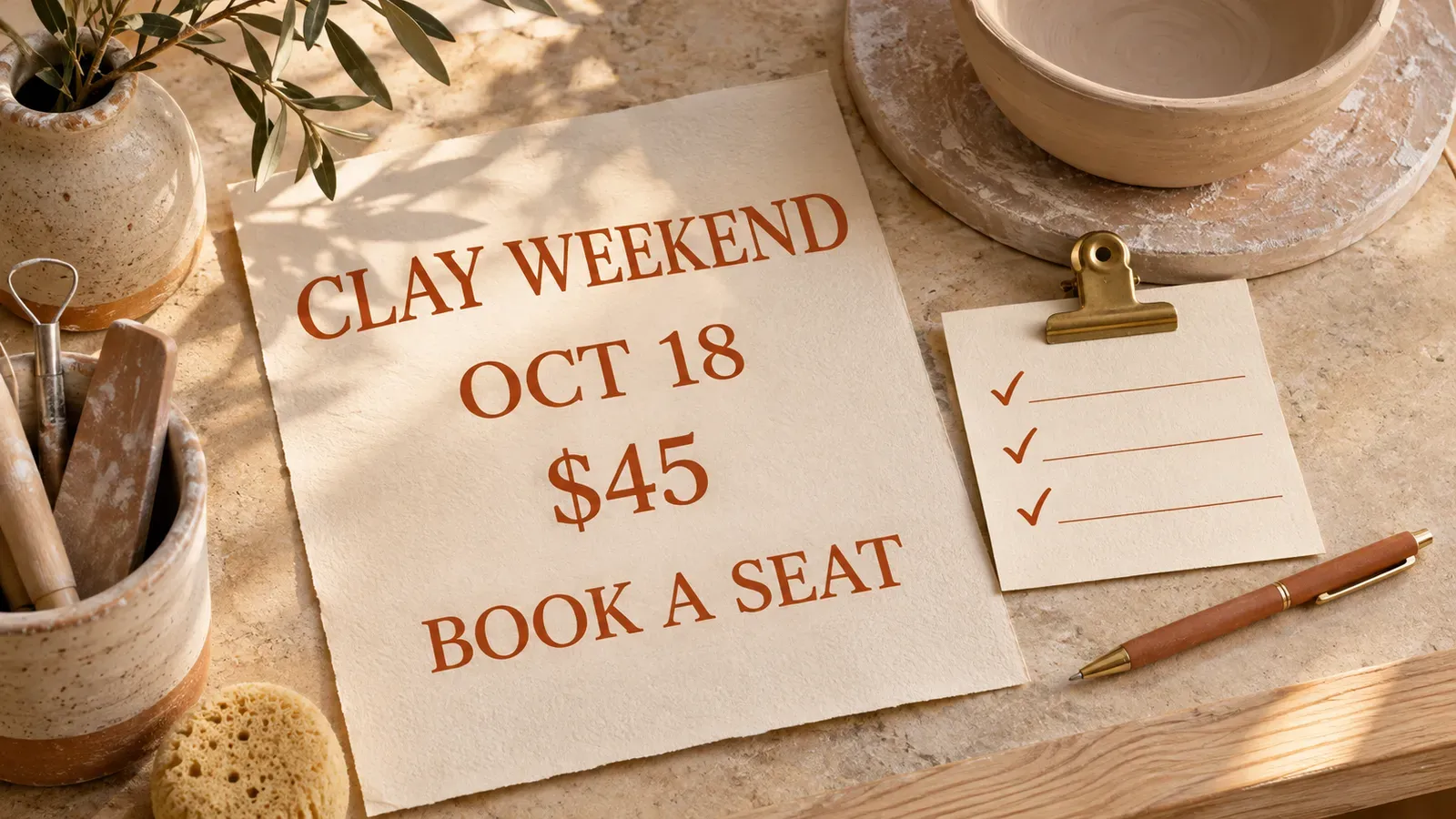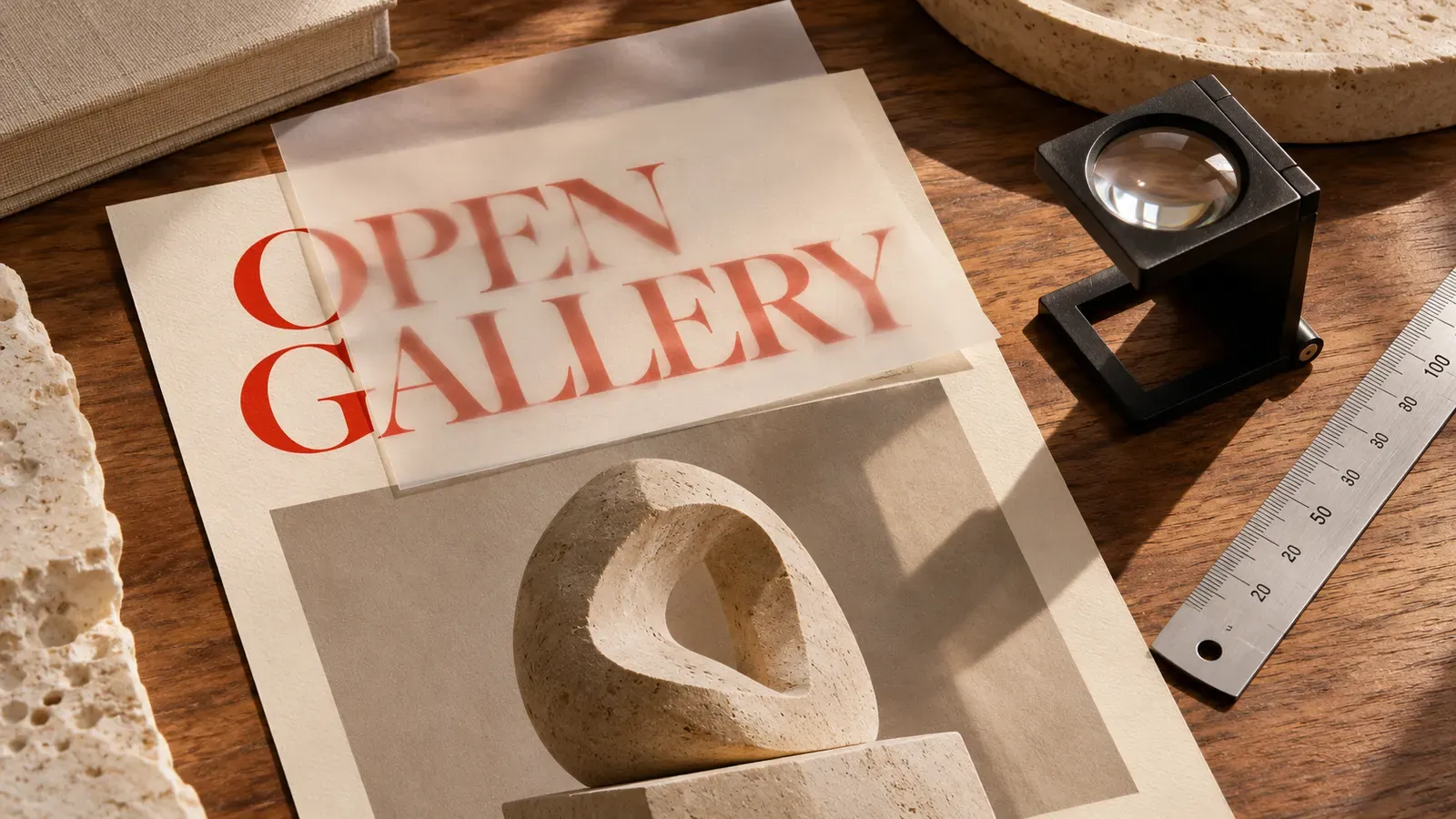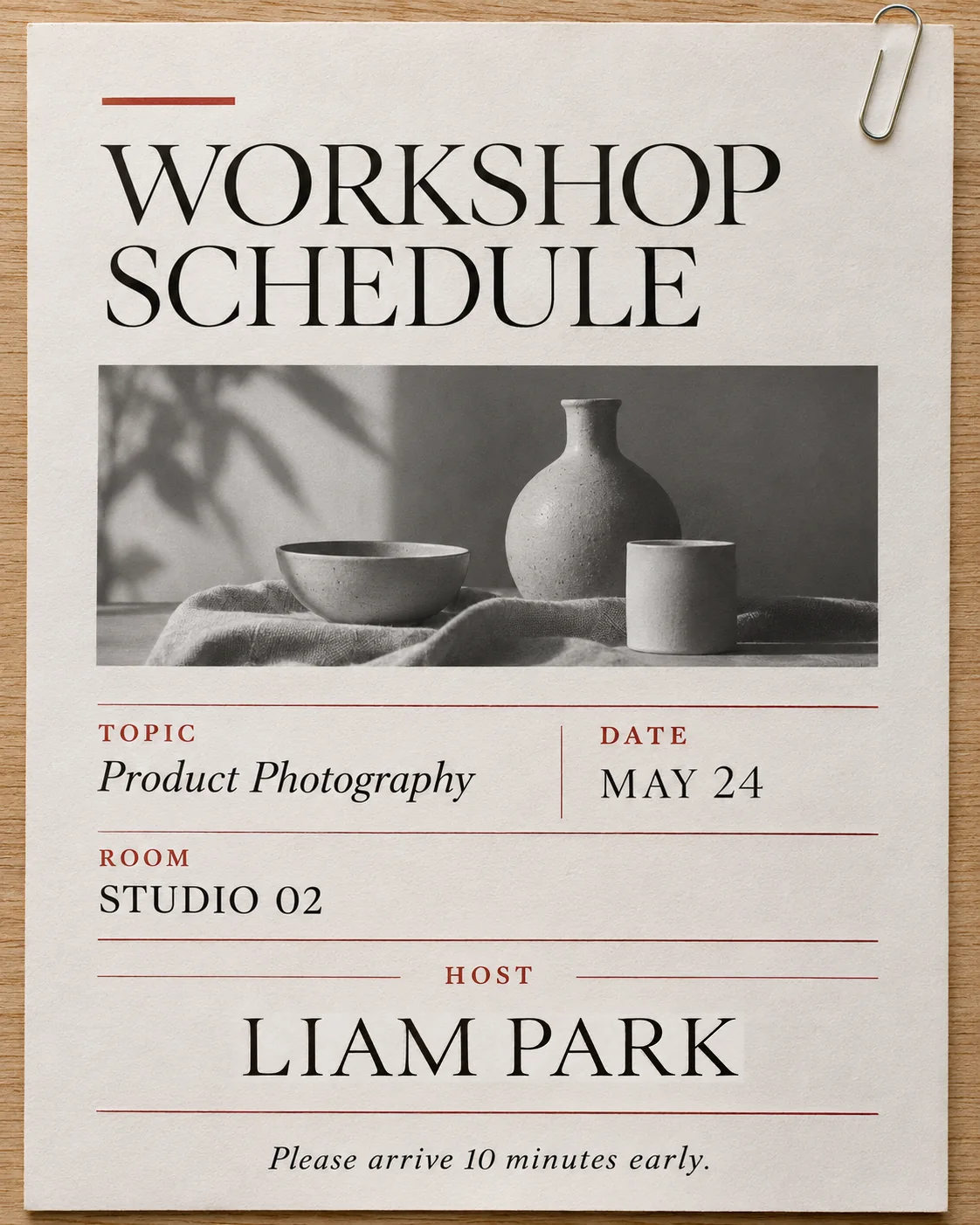
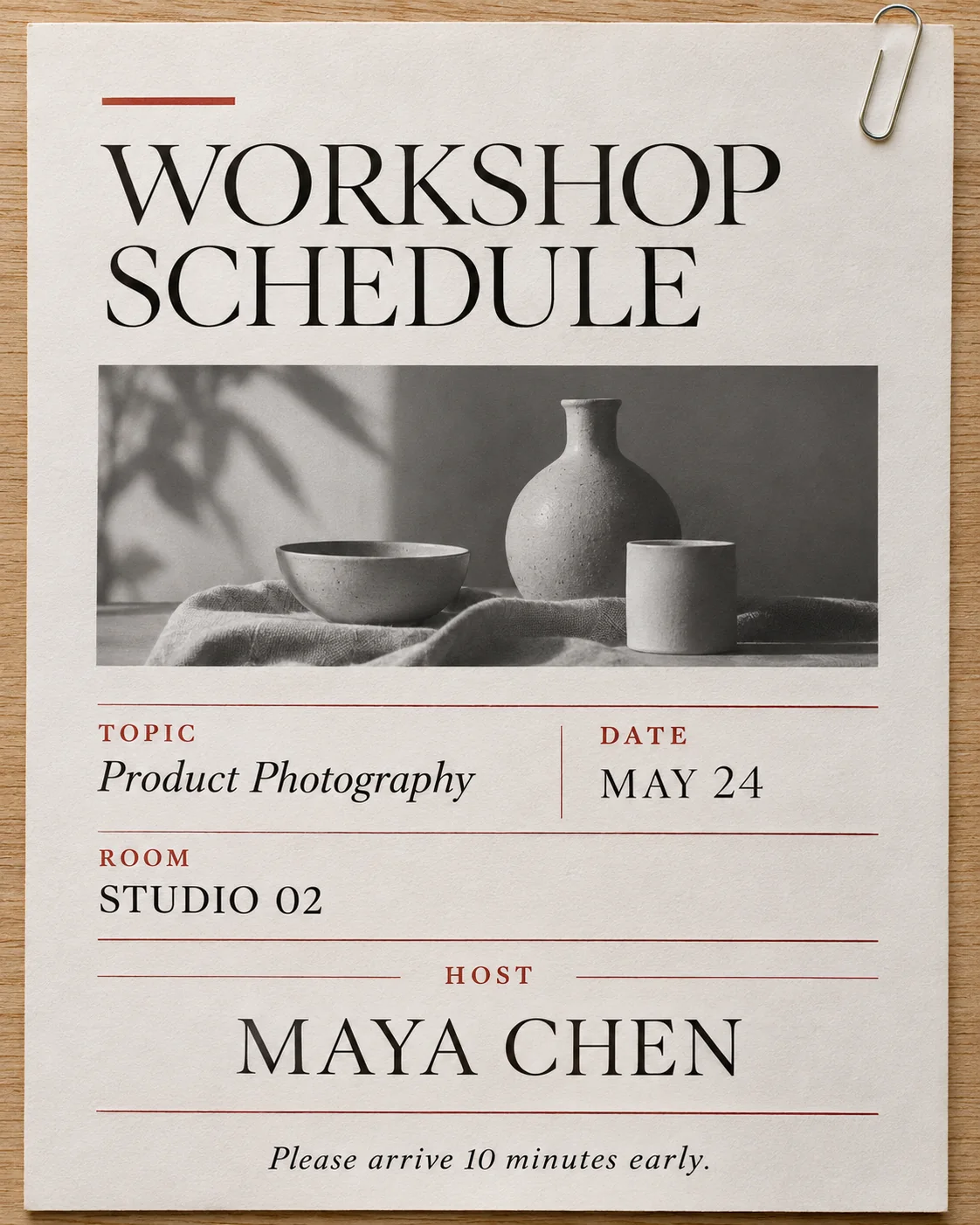
Short answer: no. Word and PowerPoint can edit text boxes and shapes, but when the words are part of a picture (a scanned flyer, a screenshot, a photo of a sign), the program sees pixels, not letters. There is no tool in either app that retypes them.
You still have two practical options. On a flat background, you can cover the old words and type new ones. On anything with texture, you can edit the picture outside Office in about a minute and swap it back in.
Why Word and PowerPoint can't edit text baked into a picture
A text box stores characters, a font and a size. A picture stores only coloured pixels. Once words are flattened into a JPEG or PNG, nothing in the file says “these pixels are the letter M”. Office can crop, recolour and compress a picture, but not rewrite what it shows.
That is also why selecting the words in a picture does nothing: there is no text to select.
The native workaround: a colour-matched shape and a text box
This works well when the text sits on a single flat colour.
- Insert a rectangle over the old words (Insert > Shapes).
- Match the background colour and set Shape Outline to No Outline. In PowerPoint, open Shape Fill > Eyedropper and click next to the old words. Word has no Eyedropper under Shape Fill, so open Shape Fill > More Fill Colors and enter the RGB or hex value (sampled in PowerPoint or with your system colour picker first).
- Insert a text box on top, type the new words, and set its fill and outline to none.
- Match the font, size and colour as closely as you can.
- In Word, set the picture's wrapping to anything other than In Line with Text. Then select the picture, shape and text box together and choose Group so they move as one.
Where the shape patch shows
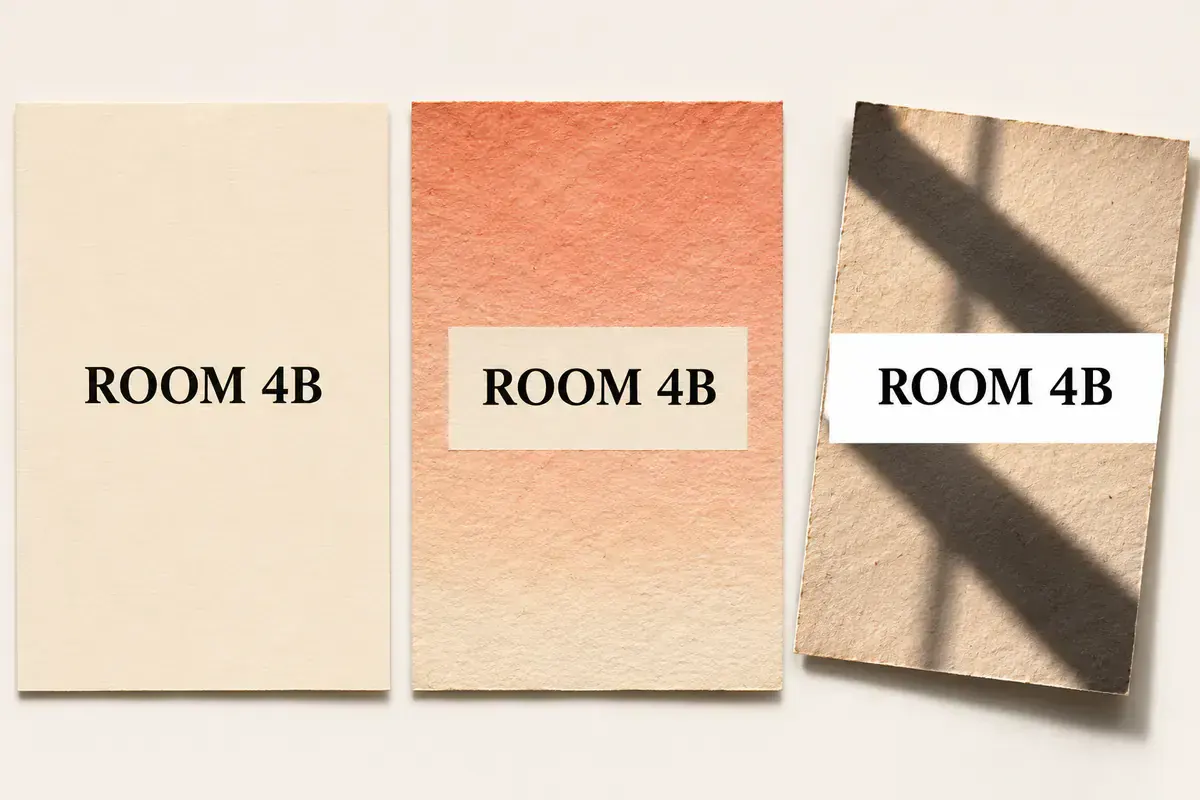
Flat colour
A colour-matched shape blends cleanly when the surface has one solid tone.
Gradient or paper grain
A solid fill shows hard straight edges as soon as tone or paper grain shifts.
Shadow or angled photo
A rectangular box cannot follow tilt or a diagonal shadow.
A shape is a single flat colour with straight edges. That is perfect on a plain background, and visible almost everywhere else:
- Gradients. The colour changes across the box, but the shape cannot.
- Paper grain or fabric. The shape is smooth where the image is textured.
- Shadows and angled photos. The straight rectangle does not follow perspective or soft shadows.
If you can see the box at normal viewing size, readers will too.
The 60-second round trip
For textured or photographic images, edit the picture itself and put it back.
- Right-click the picture and choose Save as Picture. Save it as PNG or JPEG.
- Open how to edit text in an image, upload the file, select the words with Word, Whole line or Draw an area, type the replacement and generate.
- Back in Office, right-click the original picture and choose Change Picture > From a File. Pick the edited file.
Tip for older Word versions
Some older Word builds export a lower-resolution copy with Save as Picture. If the export looks soft, paste the image into PowerPoint first and use Save as Picture there, which keeps the original resolution.
A real example: $18 → $22 on a printed menu
This printed menu combines speckled paper, thin divider rules and adjacent prices ($12 and $9). A flat cover-up shape from Word or PowerPoint would show right away on that paper. Editing the image in the round trip changes only the selected price.
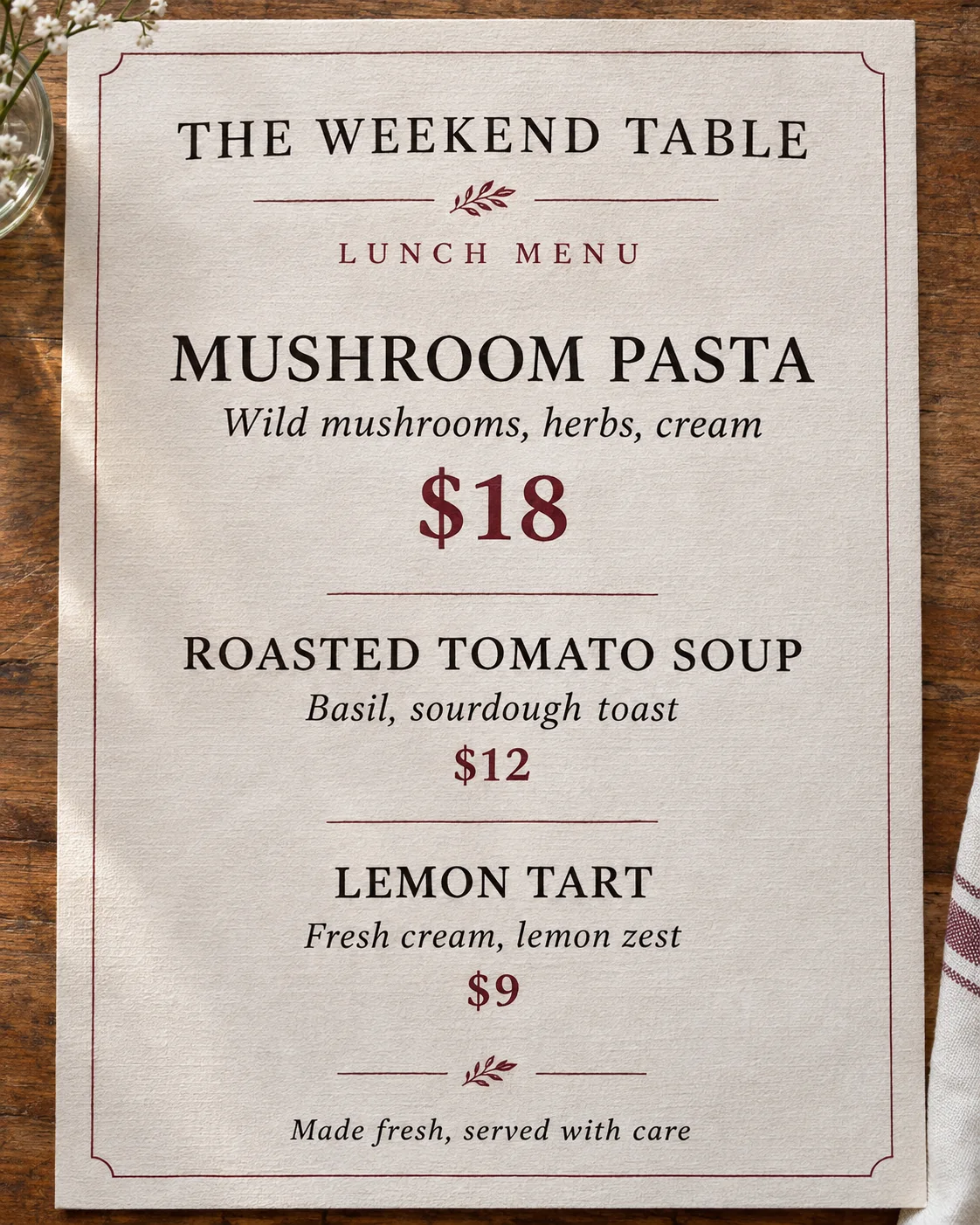 Before
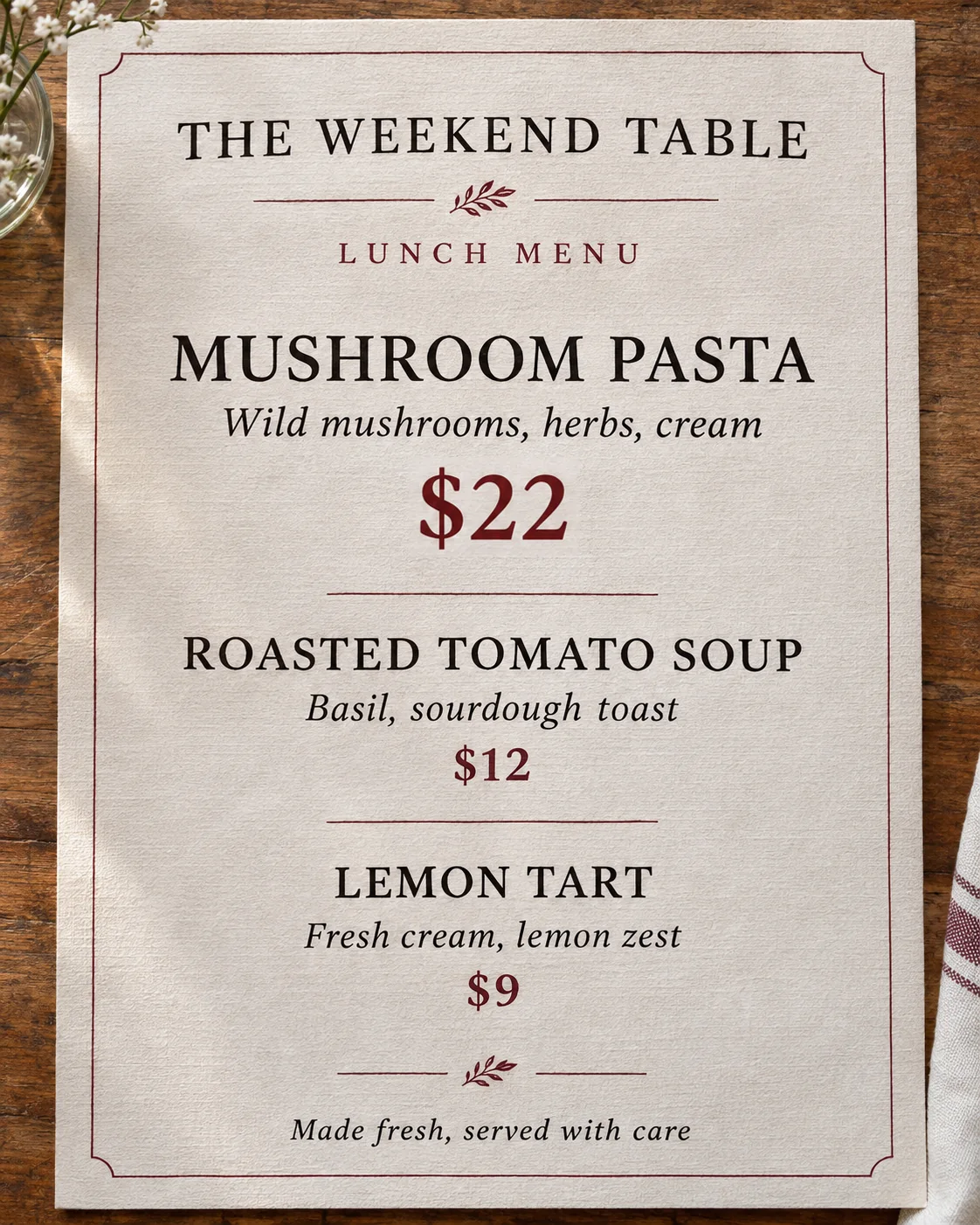 After
Keep these edits to material you own or are allowed to update, such as event notices, slides and marketing images. Do not use them on receipts, invoices, IDs, certificates or other records.
Writing on a picture in Word without a text box
If you simply want to add words to a picture rather than replace existing ones, use a shape with Add Text, or WordArt, and set the fill and outline to none. Group it with the picture as above so it stays aligned when the document reflows.
For photos and screenshots that need the existing words changed, the round trip is faster and cleaner. You can also start directly in the photo text editor.
Frequently asked questions
Can I edit a text in an image in Word?
Not directly. When text is part of a picture, Word sees pixels, not characters. You can cover it with a shape and type over it, or export the picture, replace the words in an image text editor and insert it again.
How do I write on a picture in Word without a text box?
Insert a shape over the picture, right-click it and choose Add Text. Set the shape fill and outline to none so only the words show. To keep it in place, set the picture's text wrapping to something other than In Line with Text, select both and choose Group.
Can PowerPoint edit text inside a picture?
No. PowerPoint can only edit text boxes and shapes. For text inside a picture, use the shape workaround on flat backgrounds, or edit the picture outside PowerPoint and use Change Picture > From a File.
Why does my cover-up rectangle still show?
A shape is one flat colour. It disappears only on a perfectly flat background. Gradients, paper grain, shadows and angled photos make its straight edges visible.
Will Change Picture keep my size and position?
Change Picture replaces the image while keeping its position and size on the slide or page, as long as the new file has the same proportions. Editing only the text keeps the canvas size the same.